How to Op Players and Set Up a Whitelist on Your Minecraft Server
Give your friends operator permissions and lock your Minecraft server to invited players only, straight from the PLAYERTICK control panel. No commands or file editing needed.

Running a Minecraft server with friends usually comes down to two questions: who is allowed to join, and who is allowed to run commands. Minecraft handles those with the whitelist and operators (ops).
You can manage both from the in-game console with /op and /whitelist, but on PLAYERTICK you don't need to. Every Minecraft Java server has Operators and Whitelist pages in the control panel, so you can add and remove players with a couple of clicks, even when you're not in-game.
This guide covers Minecraft: Java Edition.
Prerequisites
- A Minecraft Java server. You can view our plans here.
- The Minecraft usernames of the players you want to add. Usernames are case-insensitive, but they must be spelt correctly.
- Your server must be running. Minecraft only applies op and whitelist changes to a live server, so start it from the panel first if it's offline.
What's the difference between ops and the whitelist?
| Whitelist | Operators | |
|---|---|---|
| What it controls | Who can join the server | Who can run commands |
| Who needs it | Every player, if the whitelist is on | Only people you trust to moderate |
| Stored in | whitelist.json | ops.json |
An operator can run commands like /gamemode, /tp, /ban and /stop, and can even add more ops. Only give op to people you trust with your world.
Part 1: Add an operator
- Log in to the client area and open your Minecraft server.
- In the left-hand menu, under Game Features, click Operators.
- Click Add Operator in the top right.
- Type the player's Minecraft username and click Add.
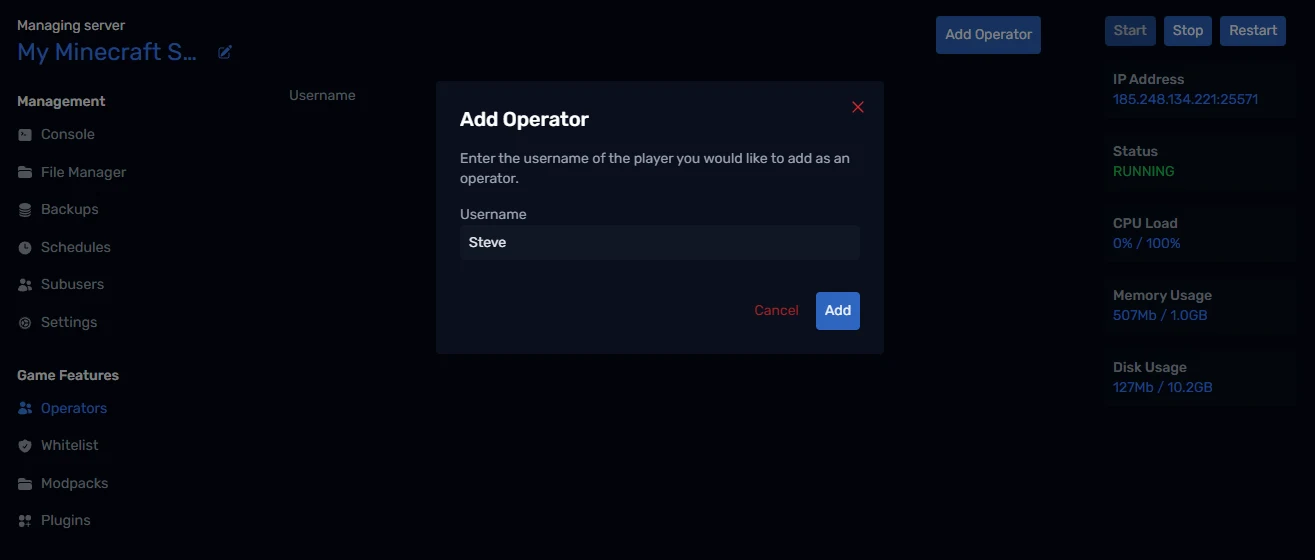
After a moment the player appears in the list with their skin's head next to their name. If they're already online, they get op straight away; there's no need to rejoin.
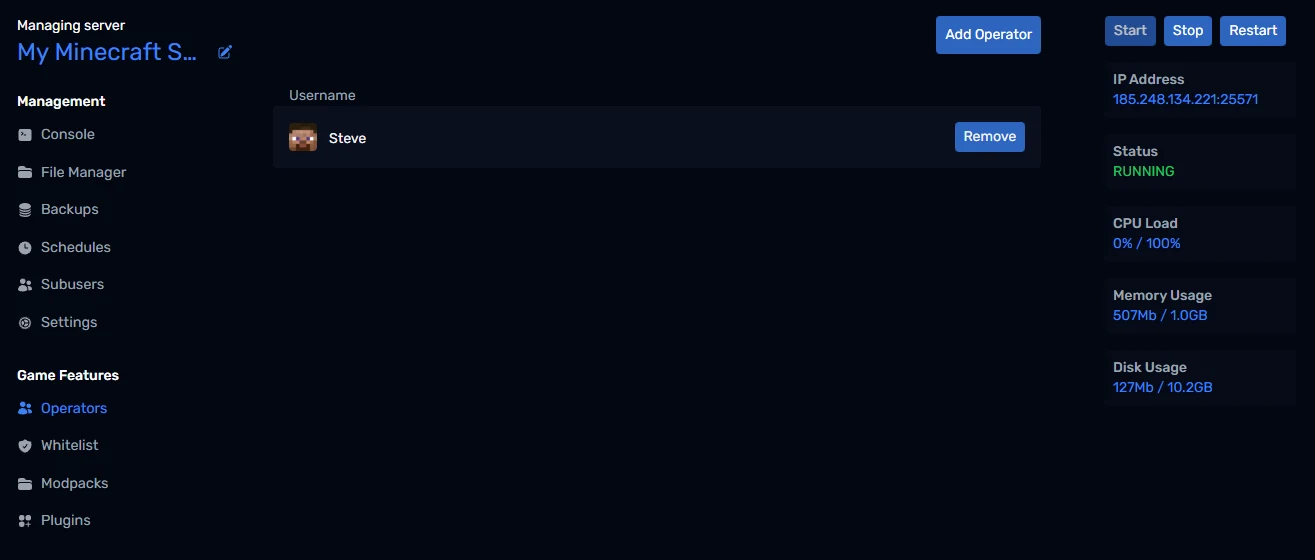
Removing an operator
Click Remove next to the player's name and confirm. They lose their command access immediately but stay whitelisted, so they can still play.
Part 2: Set up the whitelist
Step 1 - Check the whitelist is enabled
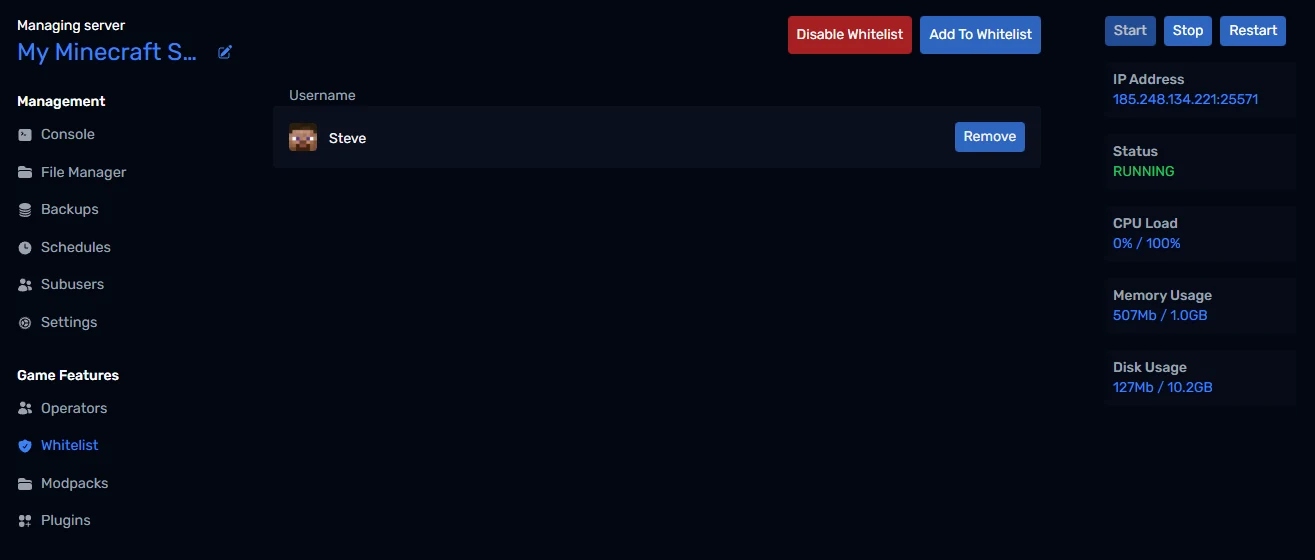
Open Whitelist under Game Features. The button in the top right tells you the current state:
- Disable Whitelist (red) means the whitelist is on. Only players on the list can join.
- Enable Whitelist means the whitelist is off. Anyone with your server address can join.
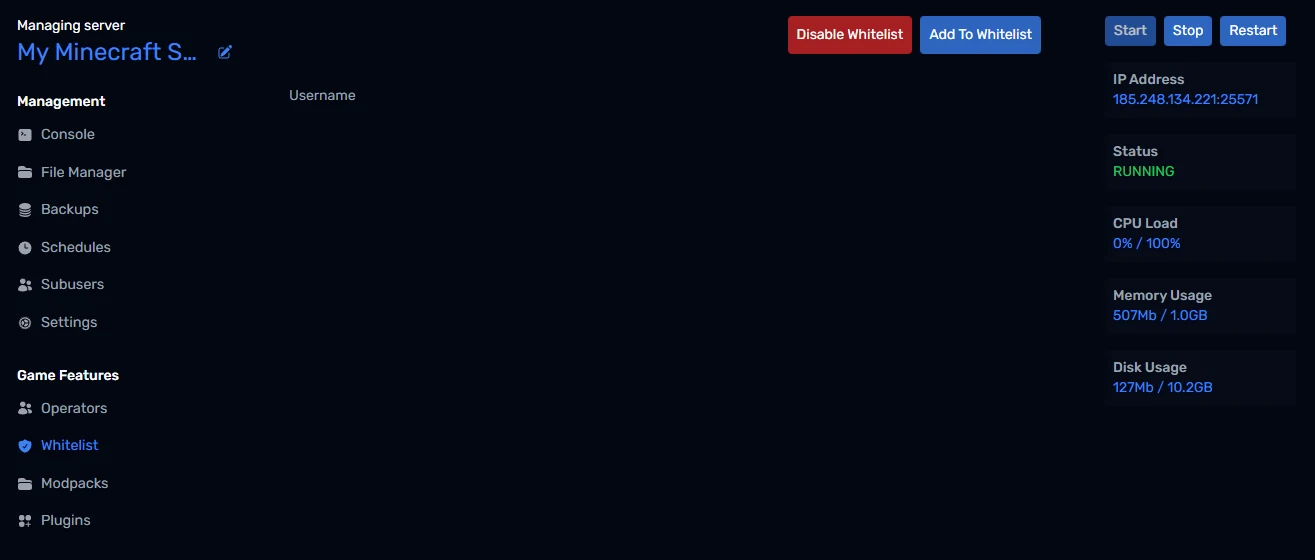
If your friends get "You are not white-listed on this server!" when they try to connect, the whitelist is on and they haven't been added yet.
Step 2 - Add players
- Click Add To Whitelist.
- Enter the player's Minecraft username.
- Click Add.
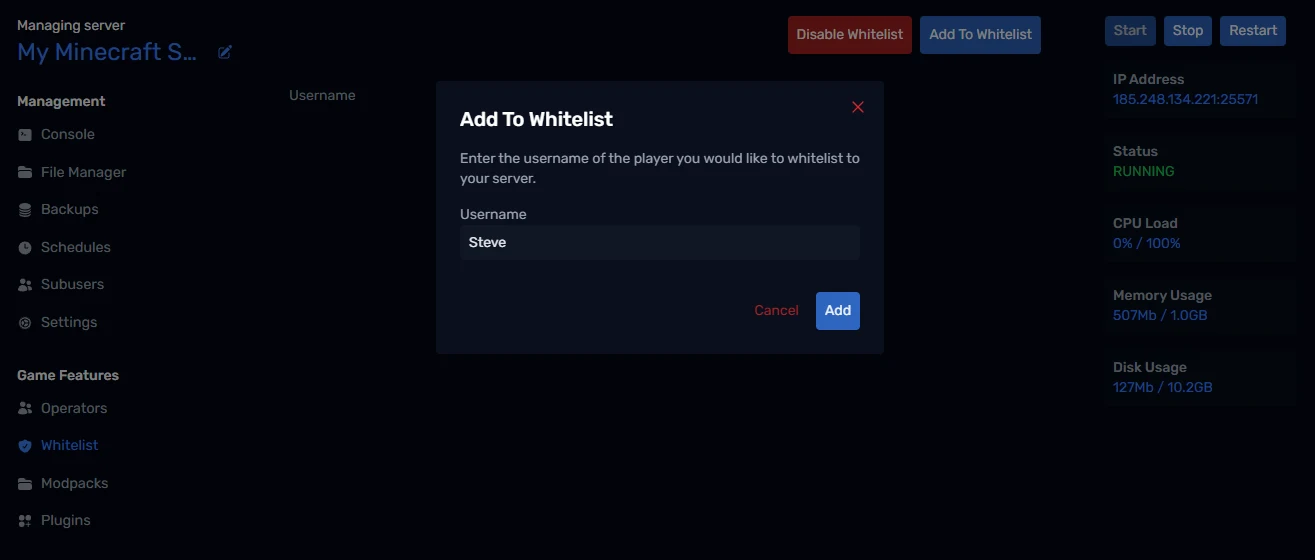
Repeat this for everyone in your group. Remember to add yourself too. Being an operator does not skip the whitelist.
Step 3 - Share your server address
Your server address is shown under IP Address on the right-hand side of every panel page. Click it to copy it, then send it to your players. In Minecraft they go to Multiplayer, then Add Server, and paste it in.
Removing a player from the whitelist
Click Remove next to their name and confirm. They can't rejoin after that. If they're online when you remove them, they can finish their session, so kick them in-game if you need them gone now.
Doing it with commands instead
If you prefer typing, the same actions work from the Console page in the panel (no slash needed) or in-game as an op (with a slash):
op <username>
deop <username>
whitelist on
whitelist off
whitelist add <username>
whitelist remove <username>
whitelist list
Changes made either way show up on the panel pages, because they all edit the same ops.json and whitelist.json files.
Troubleshooting
Nothing happens when I add someone. Check the spelling of the username and make sure the server is running. The panel pages need a live server to apply changes.
I added someone but they still can't join. Make sure they're connecting with the account you added. Players who changed their username recently need to be added under the new name.
Someone on the whitelist can't use commands. The whitelist only lets people in. Add them on the Operators page as well if they need commands.
Wrapping up
That's it: your server is now invite-only, and the right people have admin powers. Next, you might want to add plugins from the Plugins page, or install a modpack in one click from Modpacks. If you get stuck, reach out to us on Discord or through support.