Minecraft Mods: How to Install Them on a Server
Install a whole Minecraft modpack in one click from CurseForge or Modrinth, or add your own Forge, NeoForge, Fabric or Quilt mods, on your PLAYERTICK server. Step-by-step with screenshots.
Modded Minecraft is where the game really opens up: new dimensions, tech trees, magic systems and hundreds of new blocks. Getting mods onto a server used to mean matching loader versions, uploading server packs and editing startup commands by hand. On PLAYERTICK, most of that is done for you.
There are two ways to mod your server:
- Install a modpack from CurseForge or Modrinth in one click. The panel sets up the right mod loader and Java version for you. This is the easiest route and the one we recommend.
- Add your own mods to the
modsfolder once a mod loader is installed.
This guide covers Minecraft: Java Edition. Bedrock Edition doesn't support mods in the same way.
Prerequisites
- A Minecraft Java server. You can view our plans here.
- Enough memory for the pack you want to run. Small packs are happy with 4GB; big kitchen-sink packs like All the Mods want 8GB or more. You can upgrade from Settings at any time.
Step 1 - Back up your server
Installing a modpack deletes all of your server's files, including your world. If there's anything you want to keep, back it up first.
- Log in to the client area and open your Minecraft server.
- Click Backups in the left-hand menu.
- Click Create backup, give it a name like "Before modpack", and confirm.
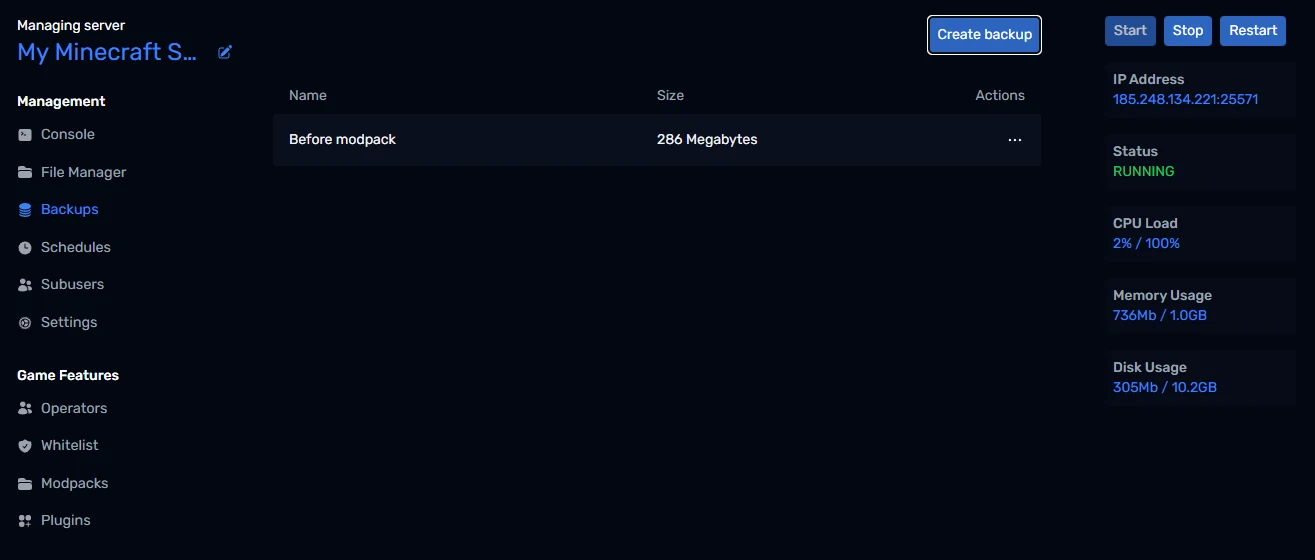
You can restore it from the ... menu next to the backup if you change your mind later.
Step 2 - Find a modpack
Click Modpacks under Game Features. You'll see the most popular packs straight away.
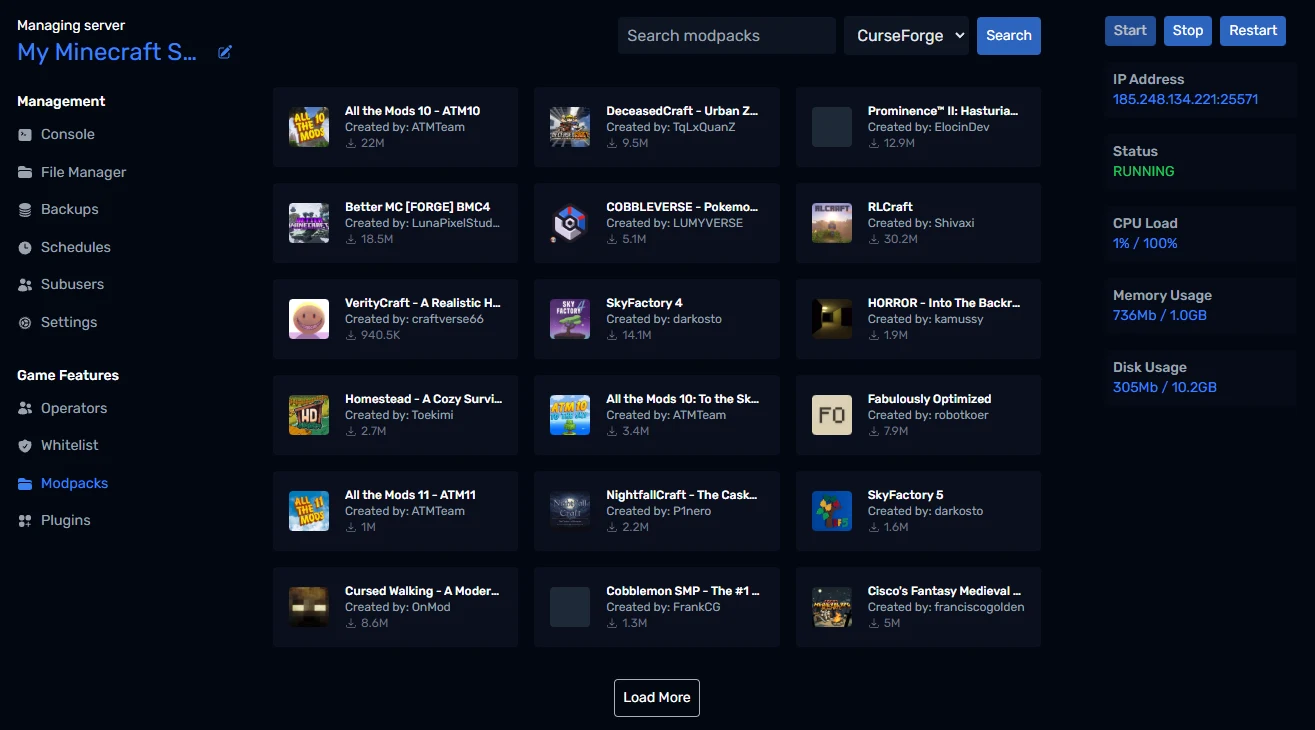
- Use the dropdown next to the search box to switch between CurseForge and Modrinth.
- Type a name into Search modpacks and click Search to find a specific pack.
- Click Load More at the bottom to see more.
Click a pack to see its description. View on CurseForge (or Modrinth) opens its full page if you want to check the mod list first.
Step 3 - Install it
Click Install on the pack you want. The next window asks which version to install:
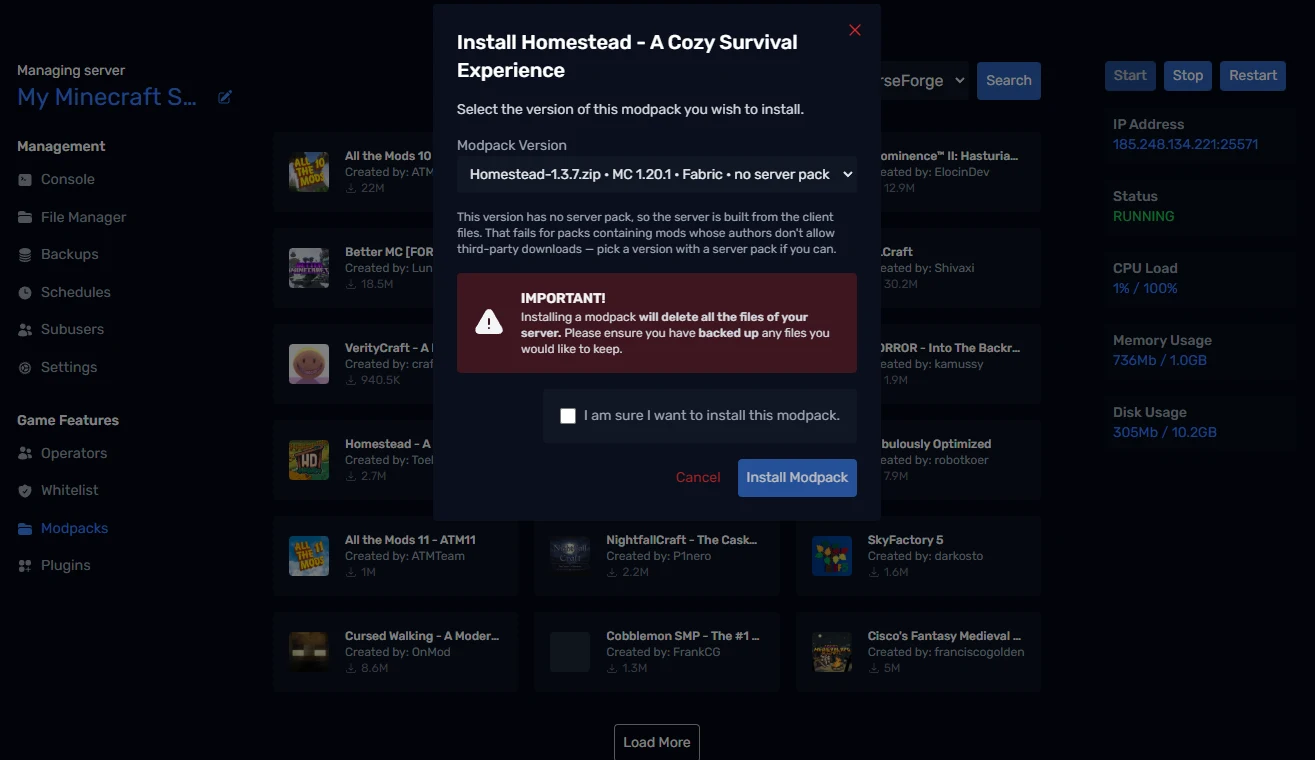
Each version in the Modpack Version list shows:
- The Minecraft version it's built for, for example
MC 1.20.1. - The mod loader it uses: Forge, NeoForge, Fabric or Quilt.
- Whether the author published a server pack.
If a version says no server pack, the panel builds the server from the pack's client files instead. That works for most packs, but fails for packs containing mods whose authors don't allow third-party downloads. If the install fails, pick a version that has a server pack.
When you're ready:
- Tick I am sure I want to install this modpack.
- Click Install Modpack.
Large packs can take several minutes to install. Click Go to Console to watch the progress. Your server starts on its own when it's done.
Step 4 - Check the installed pack
Back on the Modpacks page, your pack now shows at the top with its version, source, Minecraft version, mod loader and the Java version the panel picked to match it. You don't need to change Java yourself.
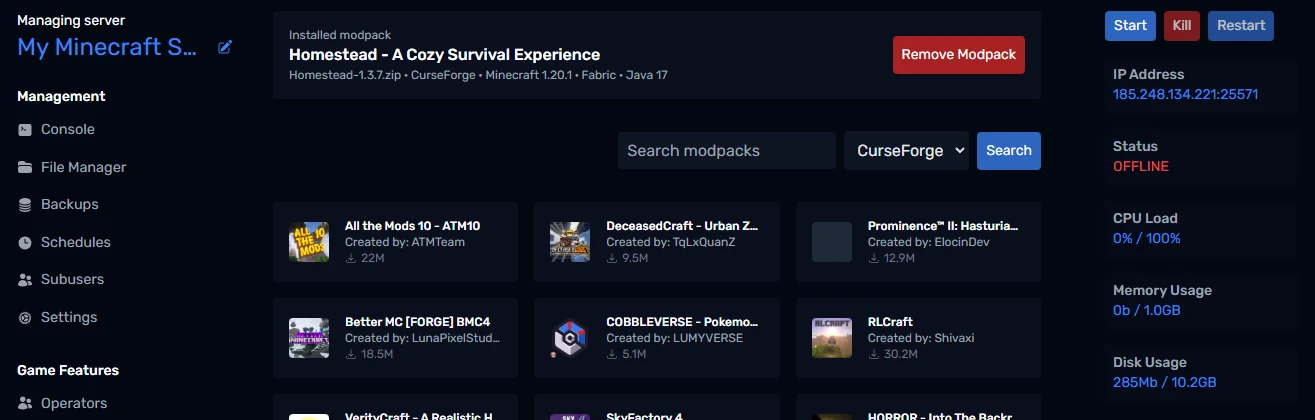
Players need the same modpack and version installed in their launcher (the CurseForge app, Modrinth app or Prism Launcher) to join. Then they connect using the address under IP Address on the right of the panel.
To go back to a vanilla server, click Remove Modpack.
Adding your own mods
Once a mod loader is installed, you can add extra mods or build your own mod list.
Upload mods to the mods folder
- Open File Manager and go into the
modsfolder. - Click Upload to add
.jarfiles from your computer, or From URL to have the server download a mod directly from a link.
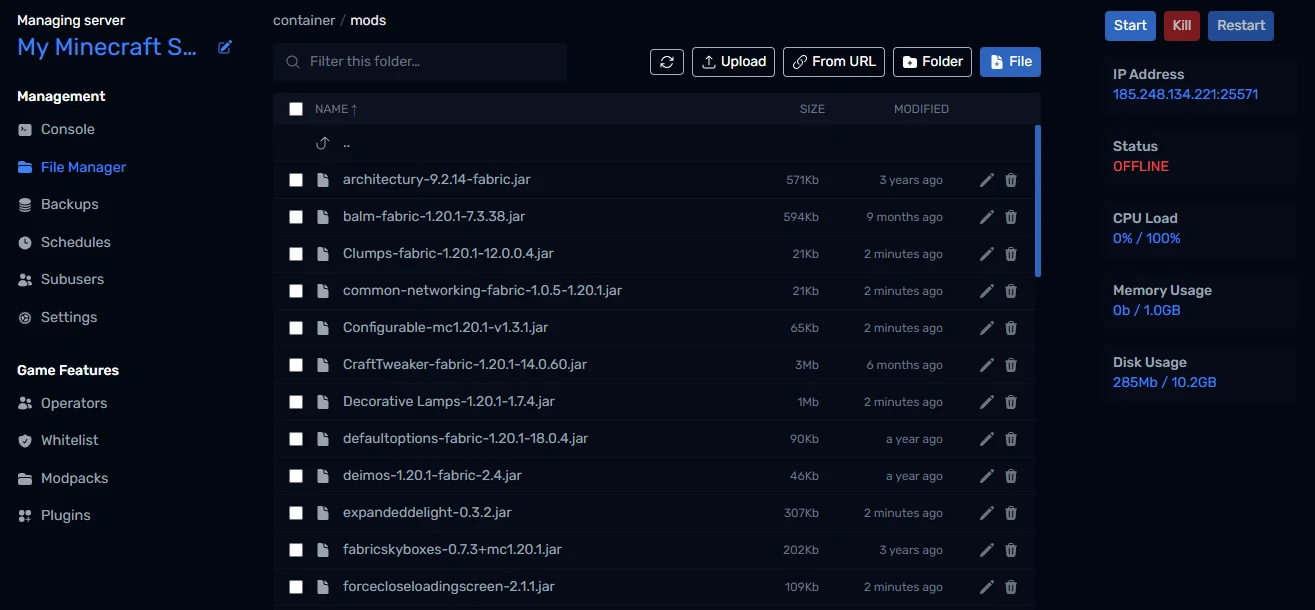
- Restart the server from the top right of the panel.
Before adding a mod, check three things on its download page:
- It's built for the same Minecraft version as your server.
- It's built for the same loader. Fabric mods don't load on Forge, and Forge mods don't load on Fabric. NeoForge is only partly compatible with Forge.
- It runs on servers. Client-only mods, like shaders, minimaps and HUD tweaks, belong in players' own game, not on the server. Many will crash a server if you add them.
Also install any dependencies the mod lists. Fabric mods almost always need Fabric API, and many mods need a library such as Architectury, Cloth Config or Balm.
Starting from scratch with Fabric
If you'd rather build your own mod list than start from a pack, set up Fabric by hand:
- Go to fabricmc.net/use/server, choose your Minecraft version, and copy the link of the Executable Server (.jar) download button.
- In File Manager, click From URL, paste the link, set Save as to
fabric-server.jar, and click Download. - Go to Settings, find Server Jar File under Startup Variables, change it to
fabric-server.jar, and click Save Variables. - Start the server once so Fabric creates the
modsfolder, then upload your mods as above.
If your Minecraft version needs a different Java, change Runtime Version on the same Settings page. Minecraft 1.20.5 and newer need Java 21 or later; 1.18 to 1.20.4 use Java 17.
Troubleshooting
The modpack install failed. Pick a version that says it has a server pack, or try a different version of the pack.
The server crashes or stops while starting. Open Console and scroll up to the first error. It usually names the mod at fault. The most common causes are a missing dependency, a client-only mod, or not enough memory.
"Out of memory" or the server is very slow to start. Big packs need a lot of RAM. Check the Memory Usage tile on the right; if it's near the limit, upgrade your plan from Settings.
Players get "mod rejections" or "mismatched mod list" when joining. Their game doesn't match the server. Make sure everyone uses exactly the same modpack version, and that any extra mods you added are installed on their side too.
I removed a mod and my world has missing blocks. Blocks and items from a removed mod are gone for good. Restore your backup from Backups if you need them back.
Wrapping up
That's it: your server is modded, and you know how to add more. If you'd rather run plugins than mods (Paper servers with EssentialsX, WorldGuard and similar), see our guide on optimising your Minecraft server, which covers switching to Paper. If you get stuck, reach out to us on Discord or through support.