How to Install Mods on an ARK: Survival Ascended Server
Add CurseForge mods to your ARK: Survival Ascended dedicated server using mod IDs. Find the right ID, add it in the PLAYERTICK panel, and your players download mods automatically when they join.
Mods are one of the best things about ARK: Survival Ascended. Better building pieces, quality-of-life tweaks, new creatures and whole new maps are all a few clicks away. Unlike ARK: Survival Evolved, which used the Steam Workshop, ASA mods come from CurseForge, and every mod has a numeric Project ID that your server uses to download it.
On PLAYERTICK you don't need to upload any mod files. You paste the mod IDs into your server settings, and the server downloads them on its next start. Players get the same mods automatically when they join.
Prerequisites
- An ARK: Survival Ascended server. You can view our plans here.
- The mods you want to install, found on CurseForge.
Step 1 - Find the mod's Project ID
- Go to CurseForge's ARK: Survival Ascended section and open the mod you want.
- Look for Project ID in the details on the mod's page. It's a number, usually six digits.
- Write it down, and repeat for each mod.
For example, CG Structures, the Ascended version of the classic Structures Plus (S+) building mod, has the Project ID 942452.
Before adding a mod, check its page says it supports dedicated servers and is up to date with the latest ASA version. Outdated mods are the most common reason a modded server won't start.
Step 2 - Add the mod IDs to your server
- Log in to the client area and open your ARK server.
- In the left-hand menu, click Settings.
- Scroll down to the Startup Variables card and find the MOD IDs field.
- Enter your mod IDs, separated by commas with no spaces. One mod looks like
942452; several look like942452,<second ID>,<third ID>.
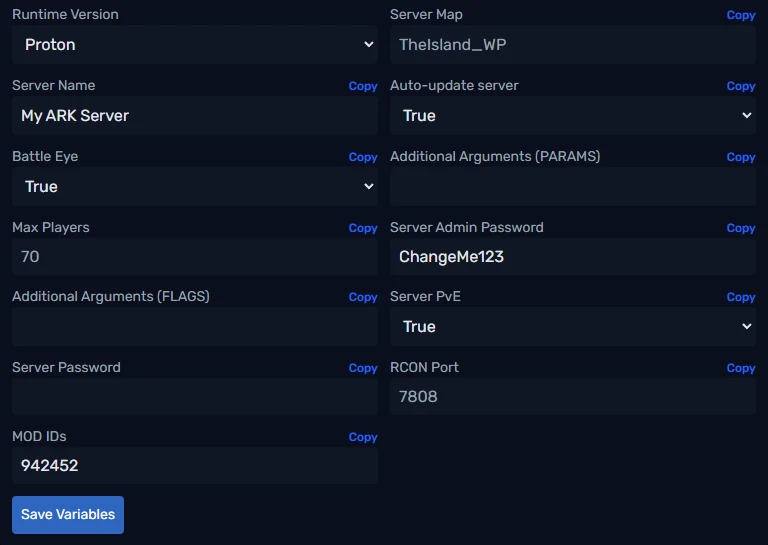
Mods load in the order you list them. If two mods change the same thing, the one listed first wins, so put your most important mods at the front.
Step 3 - Save and restart
Click Save Variables. Your server restarts and downloads the mods from CurseForge before it opens to players.
The first start after adding mods takes longer than usual, especially with large mods or several at once. Open Console from the left-hand menu to watch progress. Your server is ready once it finishes loading and the Status tile shows RUNNING.
Step 4 - Join your server
Players don't need to install anything by hand. When they join, ASA downloads any missing mods for them automatically. The first join can take a few minutes depending on how many mods you run.
Removing or updating mods
- To remove a mod, delete its ID from MOD IDs (along with its comma) and click Save Variables. Anything in the world that came from that mod, such as its structures or creatures, disappears. Take a backup from the Backups page first.
- To update mods, restart the server. It fetches the latest version of each mod on start.
While you're in Settings
The Startup Variables card has a few other settings worth knowing:
- Server Name: the name players see in the server browser.
- Server Password: leave it empty for a public server, or set one to keep it private.
- Server Admin Password: unlocks admin commands in-game. Open the console with the Tab key and type
enablecheats YourAdminPassword. Change it from the default and keep it secret. - Max Players: up to 200.
- Server Map: which map to run, for example
TheIsland_WP. - Server PvE: True turns off player-vs-player damage.
Advanced: editing GameUserSettings.ini
For settings the panel doesn't list, such as XP, taming and harvest multipliers, edit ARK's config files in the File Manager:
ShooterGame/Saved/Config/WindowsServer/GameUserSettings.ini
ShooterGame/Saved/Config/WindowsServer/Game.ini
These files are created the first time the server runs. A couple of tips:
- Stop the server before editing. ARK writes its settings back to these files when it shuts down, which can overwrite changes you made while it was running.
- Set Max Players and the admin password in the panel, not the file. PLAYERTICK writes those two values into
GameUserSettings.inievery time the server starts, so edits to them in the file won't stick.
Troubleshooting
The server gets stuck starting after adding mods. Remove the mods, save, and add them back one at a time to find the culprit. It's usually a mod that hasn't been updated for the latest ASA patch.
Players get kicked with a mod mismatch. Restart the server so it pulls the latest mod versions, and ask players to restart their game.
Nothing changed after adding a mod. Check the IDs are separated by commas with no spaces, and that you clicked Save Variables.
Wrapping up
That's it: your ARK: Survival Ascended server is modded, and your players get everything automatically when they join. If you get stuck, reach out to us on Discord or through support.