How to Set Up a Valheim Dedicated Server (Name, Password and Crossplay)
Set your Valheim server's name, password, world and crossplay options, then get your Viking crew connected. A step-by-step guide for new PLAYERTICK server owners.

A Valheim dedicated server keeps your world online around the clock, so your group can log in and keep building whenever they like, without waiting for the host to be on. Your PLAYERTICK server is ready to go the moment it's deployed, but there are a few settings every owner should change before inviting friends: the server name, the password, and whether console players can join.
This guide covers all of it, plus how your friends connect.
Prerequisites
- A Valheim server. You can view our plans here.
- Valheim installed on Steam, or on Xbox / PC Game Pass if you're using crossplay.
Step 1 - Open your startup settings
All the core Valheim settings live in one place:
- Log in to the client area and open your Valheim server.
- In the left-hand menu, click Settings.
- Scroll down to the Startup Variables card.
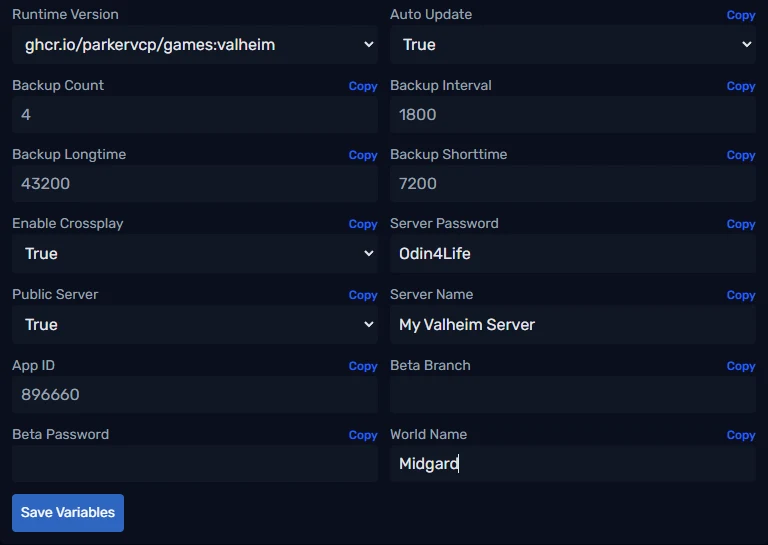
Step 2 - Choose your settings
Here's what each of the important fields does.
Server Name
The name shown in the in-game server browser. Make it easy to recognise, for example "Midgard Vikings - PvE".
Server Password
Every Valheim dedicated server needs a password. Valheim has a few rules for it:
- It must be at least 5 characters long (and no longer than 20 on PLAYERTICK).
- It must not appear in your server name. If your server is called "Odin's Hall", the password can't be "Odin". The server won't start if it does.
Share this with your group. Anyone with the password can join, so treat it like a key to your world.
World Name
The name of the save file your world lives in, up to 20 characters. If you change this later, the server creates a brand new world with that name. Your old world isn't deleted; switch the name back to return to it.
Public Server
- True: your server shows up in the in-game Community server list, so people can find it by name (they still need the password).
- False: your server is hidden from the list. Players join directly.
For a private group of friends, False keeps things quiet.
Enable Crossplay
- True: players on Xbox, PC Game Pass and the Microsoft Store can join alongside Steam players, using a join code.
- False: Steam players only, connecting by IP address.
Crossplay is on by default. Turn it off if your whole group is on Steam and you'd rather connect by address.
Backups
Backup Count, Backup Interval, Backup Shorttime and Backup Longtime control Valheim's own automatic world backups. The defaults are sensible, so you can leave them alone. You can also take full server backups at any time from the Backups page.
Step 3 - Save and restart
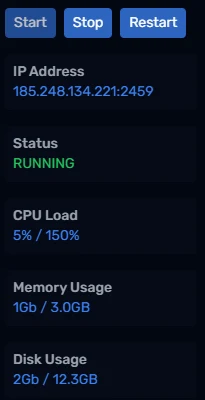
Click Save Variables. Your server restarts to apply the new settings. Open Console from the left-hand menu to watch it boot. It's ready once the log settles and the Status tile on the right shows RUNNING.
Step 4 - Connect to your server
Steam players (by IP address)
Your server's address is shown under IP Address on the right-hand side of every panel page. Click it to copy it.
Then in Valheim:
- Click Start Game, pick your character and go to the Join Game tab.
- Click Add server.
- Paste the full address, including the port after the colon, and confirm.
- Select your server in the list, click Connect, and enter the password.
Crossplay players (by join code)
With Enable Crossplay set to True, the server gets a six-digit join code each time it starts. Open Console in the panel and look for the line mentioning your join code. Players go to the Join Game tab, click Add server, and enter the code instead of an address.
The join code changes every time the server restarts, so share the new one after any restart or update.
Troubleshooting
The server keeps restarting or won't start. Check your password is at least 5 characters and doesn't appear anywhere in your server name.
My friends can't find the server in the list. Make sure Public Server is True, and give it a few minutes after starting. The list can be slow to refresh, so joining by address or code is often quicker.
"Incompatible version" when connecting. Your game and the server are on different versions. Update Valheim on your PC, or restart the server so it picks up the latest update (with Auto Update set to True).
Wrapping up
That's it: your Valheim world is online, protected and ready for your crew. Grab your axes, and watch out for the Elder. If you get stuck, reach out to us on Discord or through support.