RuneScape: Dragonwilds Server Mods: How to Install UE4SS Mods
Switch your RuneScape: Dragonwilds server to the Windows + UE4SS build in one click, then upload, enable and check UE4SS mods with the PLAYERTICK file manager.
UE4SS is the mod loader most RuneScape: Dragonwilds server mods are built for. It only runs on the Windows version of the dedicated server, so PLAYERTICK offers that build as a second option alongside the standard Linux one. This guide shows you how to switch your server to it, upload a mod with the file manager, and check the mod has loaded.
Prerequisites
- A RuneScape: Dragonwilds server. You can view our plans here.
- The mod you want to install, downloaded to your computer. Most come as a
.zip.
Which build should I use?
Your server can run one of two builds, and you can switch between them whenever you like:
| Build | What it's for |
|---|---|
| Linux (recommended) | The standard Dragonwilds server. Use it if you don't need UE4SS mods. |
| Windows + UE4SS | The Windows server, run on our Linux machines with Wine, with UE4SS installed and kept up to date for you. Use it for UE4SS mods. |
Your world, Owner ID, server name and passwords are the same on both builds. Switching only replaces the server's program files.
Which mods work?
UE4SS mods come in a few kinds. Check the mod's page to see which one you have:
| Mod type | What's in the download | Where it goes |
|---|---|---|
| Lua mods | A folder with Scripts/main.lua inside | RSDragonwilds/Binaries/Win64/ue4ss/Mods |
| C++ mods | A folder with dlls/main.dll inside | RSDragonwilds/Binaries/Win64/ue4ss/Mods |
| Blueprint mods | A .pak file meant for a LogicMods folder | RSDragonwilds/Content/Paks/LogicMods |
Lua mods are the most common and the ones this guide walks through. C++ and Blueprint mods are installed the same way, just in the folder shown.
Some mods change things only players see, such as the HUD, menus or graphics. Those are installed on each player's game, not on the server. If a mod's page says "client-side" or "install on your game", it does nothing on the server. If it says "server-side" or "both", install it here, and on everyone's game too where it says so.
Step 1 - Back up your server
Switching builds and adding mods both change your server's files, so take a backup first.
- Log in to the client area and open your Dragonwilds server.
- Click Backups, then Create backup.
If anything goes wrong, you can restore the backup from the same page.
Step 2 - Switch to the Windows + UE4SS build
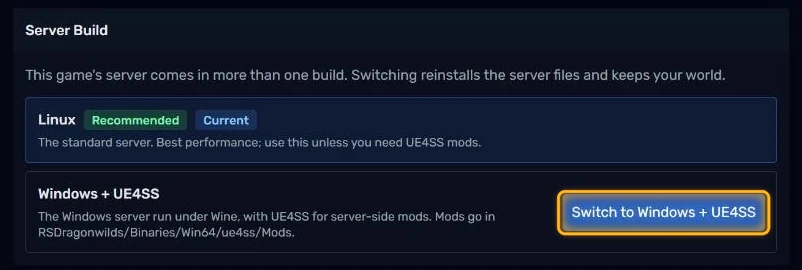
- Click Settings and scroll down to Server Build.
- Click Switch to Windows + UE4SS.
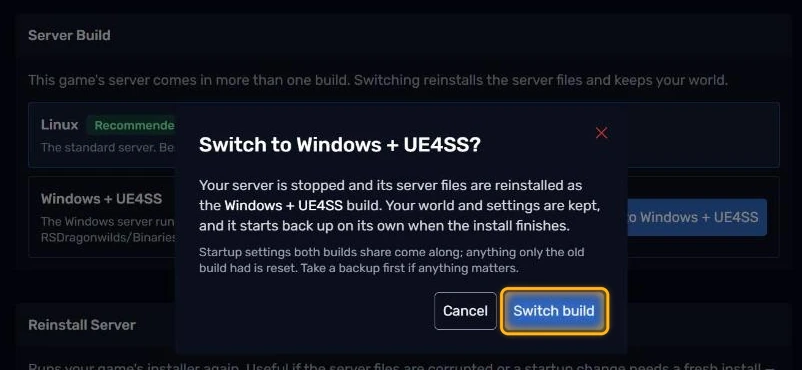
- Read the confirmation and click Switch build.
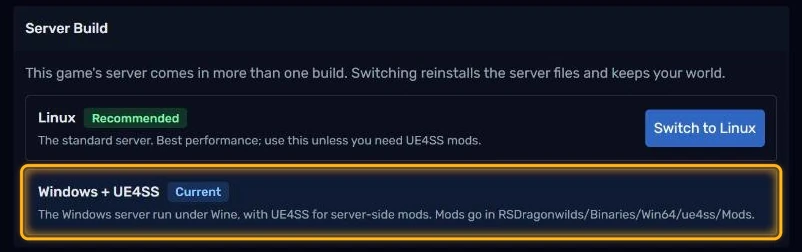
Your server stops and reinstalls on the new build. The first switch downloads the Windows server (around 5 GB), so give it a few minutes. It starts back up on its own when it's done. Back in Settings, Windows + UE4SS is now marked Current:
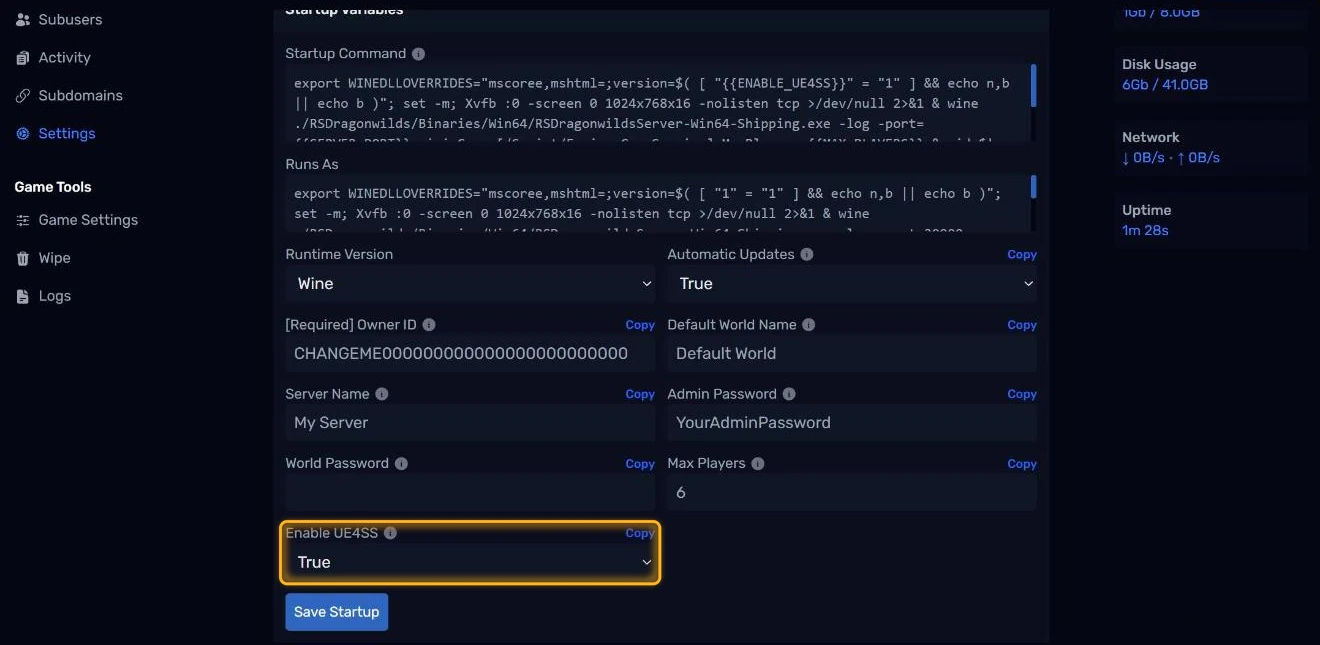
Under Startup Variables you'll also find a new Enable UE4SS setting. Leave it on True to load your mods. You can set it to False to start the server without UE4SS or any mods, without removing them, which is handy for troubleshooting.
Step 3 - Upload your mod
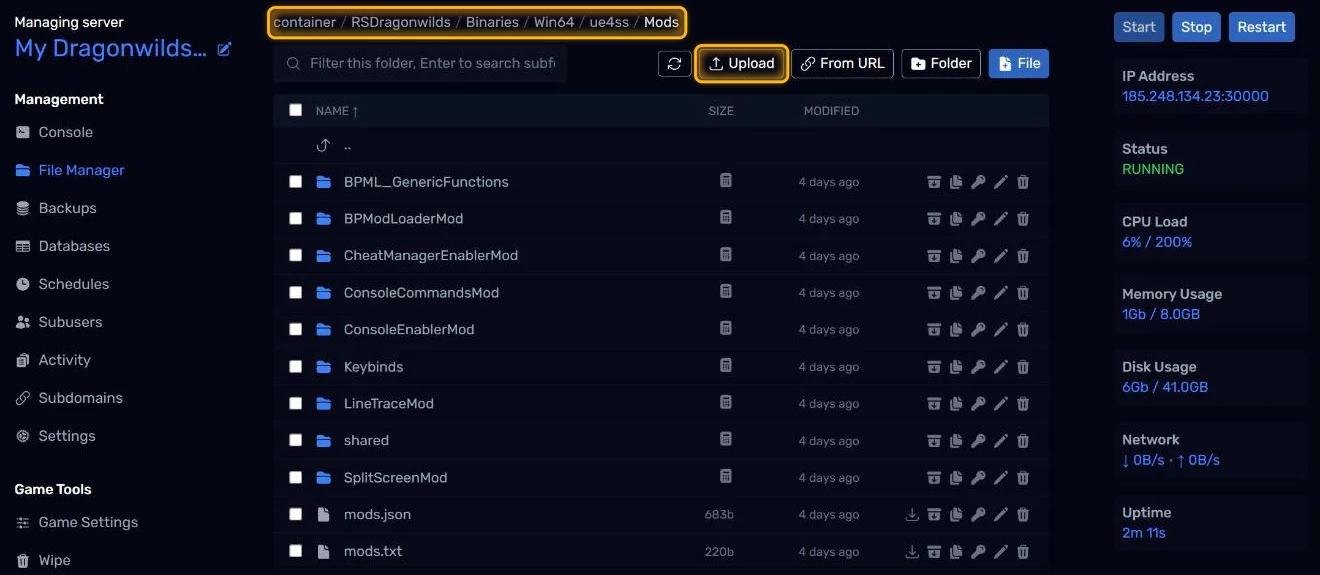
- Open File Manager and go to
RSDragonwilds, thenBinaries, thenWin64, thenue4ss, thenMods. You'll see the mods UE4SS comes with, such asBPModLoaderModandConsoleCommandsMod. - Click Upload and pick the mod's
.zipfile.
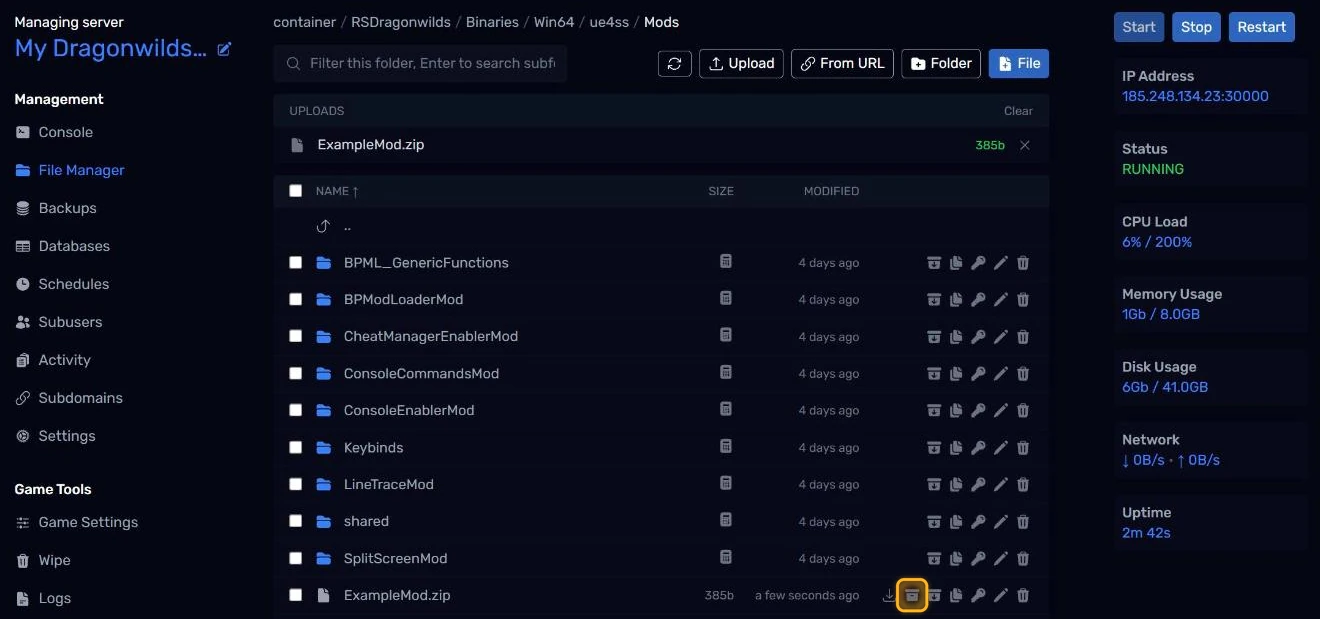
- When the upload finishes, click the Unpack button on the
.zipfile's row.
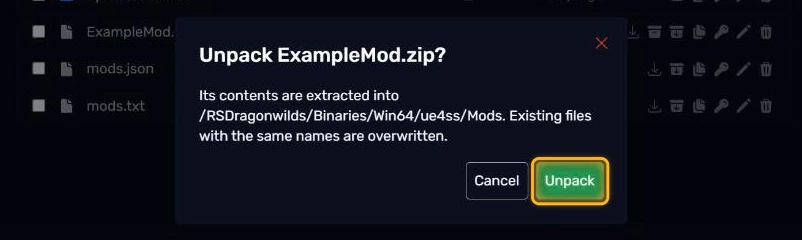
- Click Unpack to confirm. The mod's folder appears in
Mods, and you can delete the.zip.
If the mod didn't come as a .zip, click Folder to create a folder named after the mod, open it, and upload its files there instead.
Step 4 - Check the mod's folder and enable it
Open the mod's folder. It should look like this, with the mod's own files directly inside it:
Mods/
  ExampleMod/
    Scripts/
      main.lua
    enabled.txt
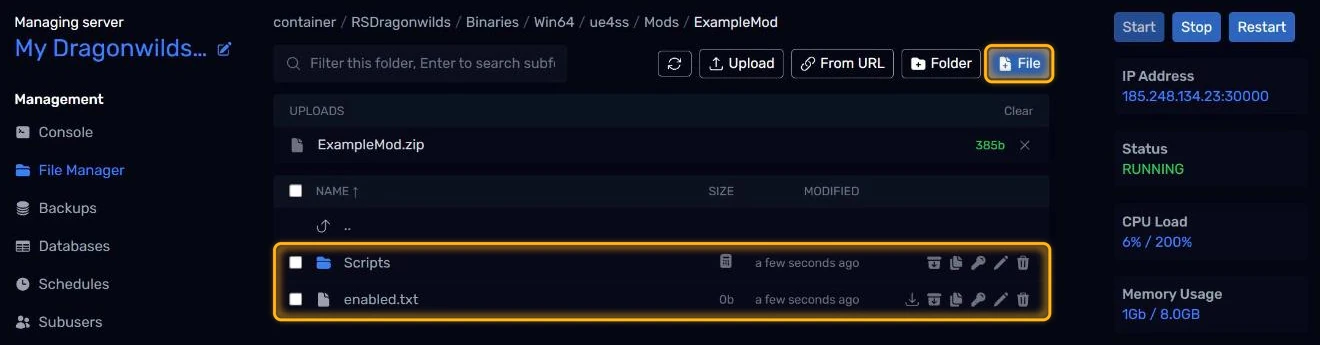
Two things to check:
- No extra folder in between. Some downloads unpack as
Mods/ExampleMod/ExampleMod/Scripts. UE4SS won't find a mod buried like that. Move the inner folder up a level, or delete the outer one and upload the inner one. - An
enabled.txtfile. This tells UE4SS to load the mod. Most mods include one. If yours doesn't, click File inside the mod's folder, name itenabled.txtand save it empty.
You can also enable mods by adding a line like ExampleMod : 1 to Mods/mods.txt, but enabled.txt is simpler and survives UE4SS updates.
Step 5 - Restart and check it loaded
- Click Restart in the top right.
- Once the server is RUNNING again, go to
RSDragonwilds/Binaries/Win64/ue4ssin the File Manager and openUE4SS.log.
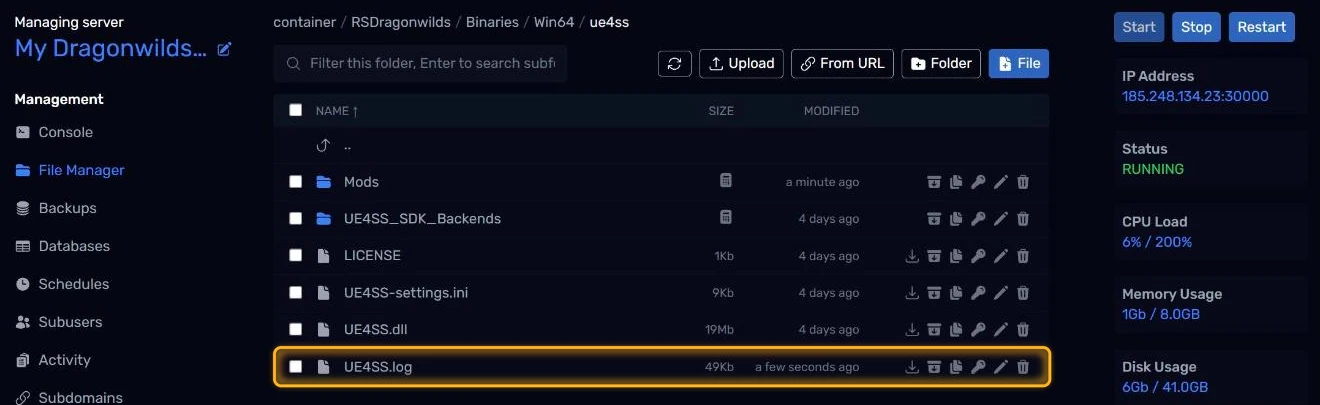
Near the end of the startup section you'll see a line for each mod UE4SS started. For a Lua mod it looks like this:
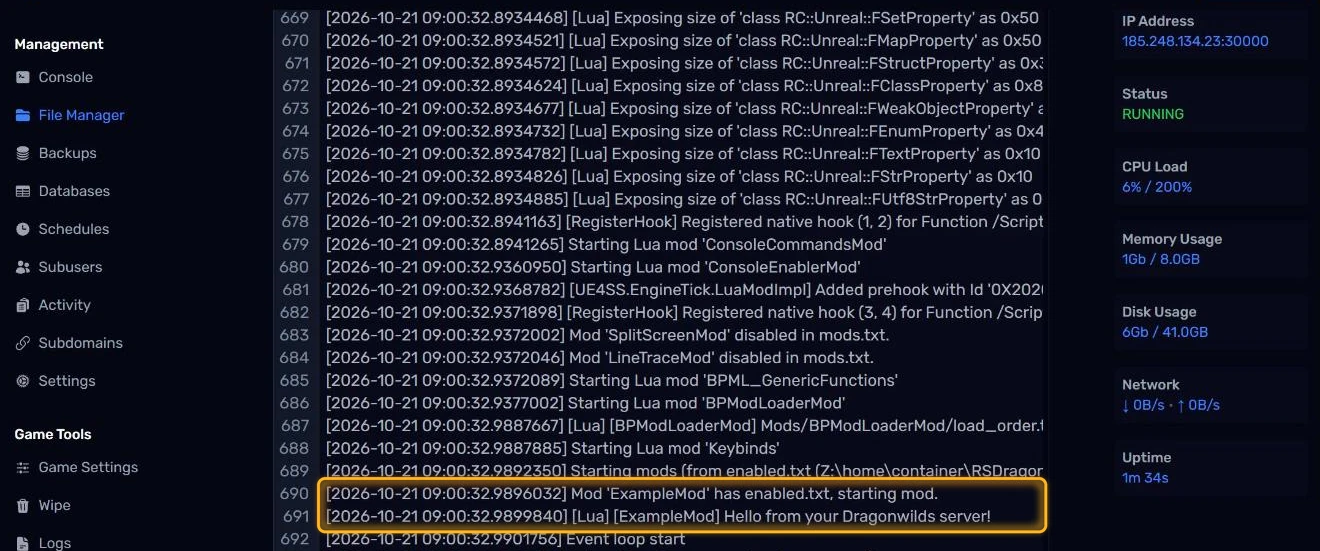
If your mod is listed, it's running. If you're adding several mods, add them one at a time and check in between, so if something breaks you know which mod caused it.
Keeping UE4SS up to date
UE4SS is installed for you. To update it to the latest version, click Reinstall Server in Settings. This refreshes UE4SS itself but leaves your mods, mods.txt and UE4SS-settings.ini exactly as they are.
Switching back to Linux
If you no longer need mods, go to Settings, then Server Build, and click Switch to Linux. Your world and settings come with you. Your mods stay in the ue4ss/Mods folder but aren't loaded, so they're still there if you switch back to Windows + UE4SS later.
Troubleshooting
My mod isn't in UE4SS.log. Check the folder layout in Step 4: the mod's folder has to be directly inside Mods, with enabled.txt next to its Scripts (or dlls) folder. Also check Enable UE4SS is True in Startup Variables.
The server won't start after adding a mod. Set Enable UE4SS to False and start the server. If it starts, one of your mods is the problem: remove the last one you added, set Enable UE4SS back to True and start again. Mods often break after a Dragonwilds update until their author updates them.
The mod loads but nothing changes in game. It may be a client-side mod that only works on players' games, or it may need installing on everyone's game as well as the server. Check the mod's page.
There's no UE4SS.log. The server isn't on the Windows + UE4SS build, or Enable UE4SS is False. Check Server Build in Settings.
Wrapping up
That's it: your Dragonwilds server is running UE4SS with your mods loaded. If you get stuck, reach out to us on Discord or through support.