s&box server setup for creating your first server
Learn how to create your first s&box server on a standard panel, choose a package and map, match your port and startup values, read first-boot logs, and avoid the most common launch mistakes.

If you want a practical s&box server setup walkthrough for creating your first server, the main job is to get three things aligned: the server allocation, the package you want to run, and the startup values that tell s&box what to load. On PLAYERTICK, that means using the normal panel tools you already have for renting an s&box server: the console, startup variables, file manager, SFTP access, backups, and restarts.
Prerequisites
Before you start, make sure you have:
- Access to the panel for your server.
- Permission to use the server console, startup variables, file manager, backups, and reinstall/update functions.
- The server's primary allocation and port number. For a first setup, this is commonly
27015/udpunless your allocation is different. - A valid s&box package ID for the experience you want to host.
- A valid starting map or scene name for that package, if the package requires one.
- SFTP access if you plan to upload custom files instead of using only the file manager.
- A backup taken before changing package IDs, maps, or startup values.
- A plan for who will administer the server, including subuser access if other people need logs or files.
- Realistic expectations about packages, assets, and dependencies. In s&box, packages fill the role many players would call mods or plugins.
- Database access only if the package author explicitly says it is required. A first server usually does not need a database.
Step 1 — Create the server and verify the allocation
Your first check is the simplest one: confirm the server has one active allocation and that the startup port matches it.
In a standard panel, the allocation is the IP and port the server listens on. For s&box, the normal first-run port you will see on hosted setups is often 27015/udp. If your server was assigned a different port, use that assigned port, not a number copied from a random tutorial.
What to verify:
- The server has a primary allocation.
- The startup port value matches the allocation port.
- You are not trying to reuse another game's port on the same node.
- If the panel shows multiple allocations, your startup values are pointing at the correct one.
A good beginner rule is this:
- Allocation port in the panel
- must match
- Server listening port in startup variables
- one-to-one
If your image exposes a launch line instead of simple variables, only edit the value that sets the listening port. A common pattern in s&box startup arguments is a host port value such as +host.port 27015. If your server image already supplies that from a variable, change the variable instead of hard-editing the command.
You can also keep the broader brand context simple and use the normal tools available from the PLAYERTICK website without relying on any custom workflow.
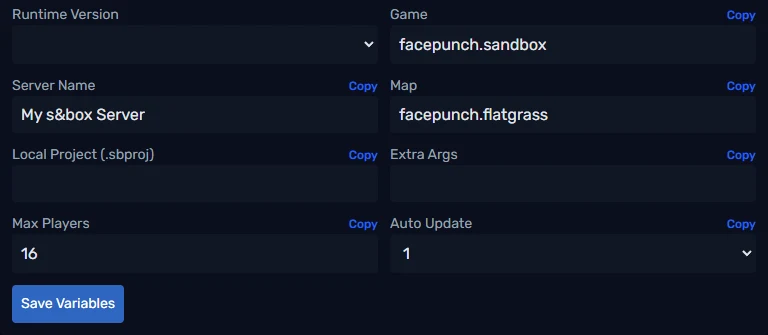
s&box server setup essentials
Your first successful launch usually depends on five settings being correct.
| Setting | What to use | Why it matters |
|---|---|---|
| Port | Your assigned allocation, often 27015 | The server must bind to the port assigned in the panel |
| Server name | A clear name for your test server | Helps you identify it in listings or when sharing details |
| Max players | Start with the image default, or keep it low while testing | Easier to troubleshoot with fewer moving parts |
| Package ID | The exact package identifier from the package author | A typo here can stop the server from loading the intended content |
| Map or scene | A valid starting map for that package | A missing or invalid map is a common first-boot error |
Package ID matters more than beginners expect
s&box servers do not become useful just because the process starts. They need a valid package to host. That package ID must match the author's published identifier exactly.
If the panel exposes a startup value for the package, use the published ID from the package page or the package author’s documentation. Do not shorten it, add spaces, or guess at capitalization.
Set the map only if you know it is valid
Some packages provide a default map or scene and do not need you to override it. Others expect an explicit starting map. If the package documentation gives you a map name, use that exact value. If it does not, leave the image default in place for the first boot rather than guessing.
Keep the launch line conservative
If the panel gives you separate startup variables, use those. If it only shows a launch line, keep changes minimal:
- match the correct port, such as
+host.port 27015 - set the package/game value only if the package author documents it
- set a starting map only if you have a confirmed valid map
For a first server, the best practice is to avoid experimental flags and leave undocumented arguments alone.
Step 3 — Start the server and watch the first boot closely
When you start the server for the first time, keep the console open. This is where you confirm whether the server actually bound to the allocation and whether the package loaded.
On a healthy first boot, you want to see evidence of these steps:
- the process starts without immediately exiting
- the server binds to the configured port
- the selected package begins loading
- the map or scene loads successfully
- the server settles into a running state instead of looping or crashing
The first launch may take longer than later launches because the server can need to fetch or prepare package content.
What to look for in practice:
- Port mismatch
- The console indicates the server cannot bind or listen.
- Bad package ID
- The server starts but cannot load the intended experience.
- Bad map
- The package resolves, but the world fails to load.
- Dependency issue
- The package expects content you have not provided or that the server cannot retrieve.
If the server crashes right after launch, do not keep editing multiple values at once. Revert to the last-known working startup values, then change only one item at a time:
- port
- package ID
- map
- password or player cap
That order gives you the fastest path to a stable first boot.
Step 4 — Join the server and confirm the basics
Once the process stays online, test it like a player would.
Use the server’s IP and allocation port together as IP:PORT. On a hosted first server, that usually means the panel’s displayed address plus your assigned port, often 27015.
Your first live checks should be simple:
- Can you reach the server using the shown
IP:PORT? - Does the loaded package match what you intended to host?
- Does the map match the configured start map?
- Can a second player join without desync or immediate disconnect?
- If you enabled a password, does it behave as expected?
This is also the right time to set lightweight admin rules:
- decide who gets panel subuser access
- keep public file access restricted
- avoid handing out reinstall or backup permissions unless needed
- document the working package ID and map in a text file for your team
If you need a private test phase, use a password before inviting others. That is much safer than advertising a server that still has untested startup values.
Step 5 — Backups, updates, and safe changes
After your first stable boot, make a backup before you do anything else.
That backup gives you a rollback point if a package update, map change, or reinstall breaks the server. In a normal panel workflow, this is the safest pattern:
- Confirm the server boots and accepts connections.
- Create a backup.
- Change one thing only.
- Restart the server.
- Watch the console for regressions.
When to back up
Create a fresh backup before you:
- change the package ID
- change the map
- reinstall the server
- apply an update
- upload package-specific files with the file manager or SFTP
- let another admin experiment with startup values
When to use reinstall vs restart
- Use restart when you only changed startup values, a password, player count, or a small text configuration.
- Use reinstall only if the server image is damaged, files are missing, or you specifically need a clean deployment.
Databases and extra services
A beginner s&box server usually does not need a database. If a package claims it does, follow that package’s documentation exactly and keep the credentials in the panel’s database feature rather than hard-coding them into random text files.
If you are building beyond your first server, the related articles on PLAYERTICK guides are a good place to look for broader panel workflows such as backups, schedules, and SFTP basics.
Step 6 — Keep the server manageable as you grow
A first server should stay simple long enough for you to prove the foundation works.
Good habits from day one:
- Keep a note of the exact package ID and working map.
- Leave the player cap modest until you have tested the package with friends.
- Use schedules for routine restarts only after the server is already stable.
- Watch resource graphs after updates or package changes.
- Give subusers only the access they need.
For s&box specifically, most “server problems” early on are really package selection problems. If the package is undocumented, abandoned, or unclear about its map requirements, your setup will be harder than it needs to be. Start with a well-documented package, prove the workflow, then experiment later.
Troubleshooting
| Area | What to check | Practical fix |
|---|---|---|
| Console output | Read the first error, not the tenth | Fix the first reported package, map, or bind issue before changing anything else |
| Logs | Use the live console first; if the image writes log files, download them from the file manager or SFTP for full errors | Compare the last working startup values with the failing ones |
| Configs | Wrong package ID, invalid map, or mismatched port | Re-enter the values exactly as documented by the package author |
| Permissions | You or a teammate cannot edit startup values, backups, or files | Adjust subuser permissions so the right person can view console and manage files |
| Backups | No rollback point before experimenting | Restore the last good backup, then retry one change at a time |
| Restarts | Server never applied your last change | Perform a full restart after changing package, map, or startup values |
| Startup variables | Variable value does not match the allocation or package docs | Set the port to the assigned allocation, then verify package ID and map |
| Allocations | Wrong primary allocation or unexpected extra port | Use the correct primary allocation and remove confusion before troubleshooting gameplay |
| Ports | The server is set to 27015, but the assigned allocation is different | Always trust the panel allocation over a copied tutorial value |
| Databases | Package expects a database and cannot connect | Create the database in the panel and use the exact credentials supplied there |
| Schedules | Automated restart runs during testing and interrupts first boot checks | Disable or pause schedules until the server is confirmed stable |
| Resource usage | CPU or memory spikes during package load | Let first boot finish, then test with fewer players and a simpler package |
| Uploads | Files were uploaded to the wrong location or incompletely transferred | Re-upload via SFTP, verify filenames, and avoid partial overwrites |
| Package mismatch | The server loads, but not the experience you expected | Double-check the package identifier and any package-specific startup requirement |
| Missing dependencies | Package references content that is unavailable | Use a better documented package or add the required dependencies exactly as documented |
Next steps
- Create a backup of the first confirmed working state before changing anything else.
- Add one trusted friend as a subuser if they need console or file access.
- Test one package change at a time so you can identify failures quickly.
- Add a simple restart schedule only after the server has been stable for several sessions.
- Keep a small text note with the working
IP:PORT, package ID, and starting map for future troubleshooting.