Palworld

Palworld server mods: how to install them safely

Learn how to install Palworld server mods from a standard web panel, including the correct folders, safe backup steps, config checks, restart workflow, and how to avoid Windows-only mod frameworks on incompatible servers.

Lewis Vaughan··9 min read
#modding#ue4ss#server-admin#ini-config#file-manager#troubleshooting
Palworld server mods: how to install them safely

Palworld server mods can work on a dedicated Palworld server, but the process is only smooth when you separate true server-compatible mods from client-only downloads and install each file in the right place. If you are starting from PLAYERTICK’s Palworld server hosting page, the safest approach is to treat modding as a controlled file deployment: back up first, upload only supported files, restart cleanly, and verify the result in the console and logs.

Prerequisites

Before you upload anything, make sure you have these basics covered:

  • Access to the server in the panel, including:
    • the server console
    • the file manager
    • SFTP access if you prefer uploading with a desktop client
  • Permission to stop, start, and restart the server
  • A recent backup, ideally of the entire Pal/Saved/ directory before every mod change
  • Your main Palworld config path:
    • Linux dedicated server: Pal/Saved/Config/LinuxServer/PalWorldSettings.ini
  • Access to the default settings file if you need to compare values:
    • Pal/Config/DefaultPalWorldSettings.ini
  • Awareness of the server’s gameplay port from config:
    • PublicPort=8211 is the documented default in PalWorldSettings.ini
  • If you use remote administration:
    • RCONEnabled=False
    • RCONPort=25575
  • A way to unzip mod archives locally before upload
  • An understanding of the mod type you downloaded:
    • .pak / .ucas / .utoc content mods
    • framework-based mods such as UE4SS mods
    • client-only mods that do not belong on a dedicated server
  • Knowledge that Palworld does not normally need an external database for vanilla operation or for most mods
  • A clean startup configuration; if your panel exposes startup arguments, common dedicated server flags documented for Palworld include:
./PalServer.sh -port=8211 -players=32 -useperfthreads -NoAsyncLoadingThread -UseMultithreadForDS

If your panel already builds the launch command for you, do not remove working startup arguments while you test mods.

Palworld server mods: what works on a dedicated server

The most important step is compatibility checking.

Palworld does not have broad, official, built-in workshop-style server mod management. In practice, you will usually see three kinds of downloads:

  1. Pak-based content mods
    These usually ship as one or more of:

    • .pak
    • .ucas
    • .utoc

    These are the safest mods to try first on a standard dedicated server.

  2. Framework-based mods
    These rely on a loader such as UE4SS. Many of these are documented by mod authors for Windows game binaries and are often not suitable for a typical Linux dedicated server deployment.

  3. Client-only mods
    Cosmetic UI mods, local model changes, and similar edits usually need to be installed by each player and may do nothing on the server.

A practical rule: if the archive does not clearly mention dedicated server support, assume it is not a server mod.

Before you install anything, check the mod page for:

  • dedicated server compatibility
  • game version compatibility
  • whether all connecting players also need the mod
  • dependency mods or frameworks
  • whether the author expects Windows-only files under Win64

If your server clearly uses Linux paths such as Pal/Saved/Config/LinuxServer/PalWorldSettings.ini, be cautious with UE4SS-style mods unless the author explicitly documents Linux dedicated server support.

Step 1 — Back up the server first

Do not install mods on your live world without a rollback point.

At minimum, make a backup of:

  • Pal/Saved/
  • any existing mod folder you already use, such as:
    • Pal/Content/Paks/~mods
    • or, for Windows-only framework setups, Pal/Binaries/Win64/

Why Pal/Saved/ matters:

  • it contains your world save data
  • it contains server config under Config/LinuxServer/
  • it contains logs you may need during rollback

A safe panel workflow is:

  1. Stop the server.
  2. Create a panel backup, or download a copy of Pal/Saved/ through the file manager or SFTP.
  3. Save the exact mod archive you are about to install, untouched, on your computer.
  4. Change only one mod at a time.

That last point matters more than people expect. If you upload five mods together and the server fails, you have no fast way to identify the problem mod.

If you need a neutral starting point for the rest of your server workflow, the main PLAYERTICK site is just the wrapper around standard panel actions like backups, files, restarts, and console access, so keep your process simple and repeatable.

Step 2 — Install pak-based mods

For standard panel-managed Palworld servers, pak-based mods are usually the best place to start.

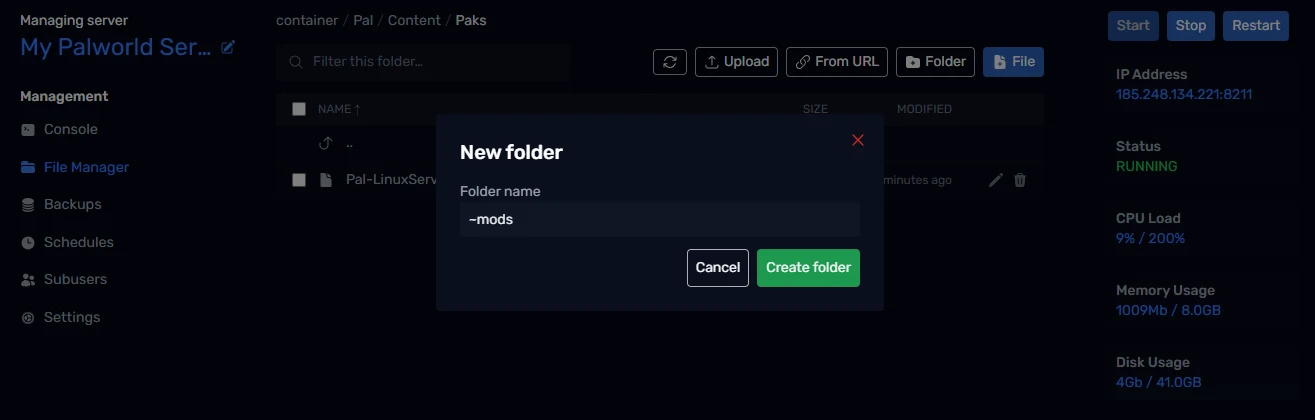
Create the correct mod folder

On the server, navigate to:

Pal/Content/Paks/

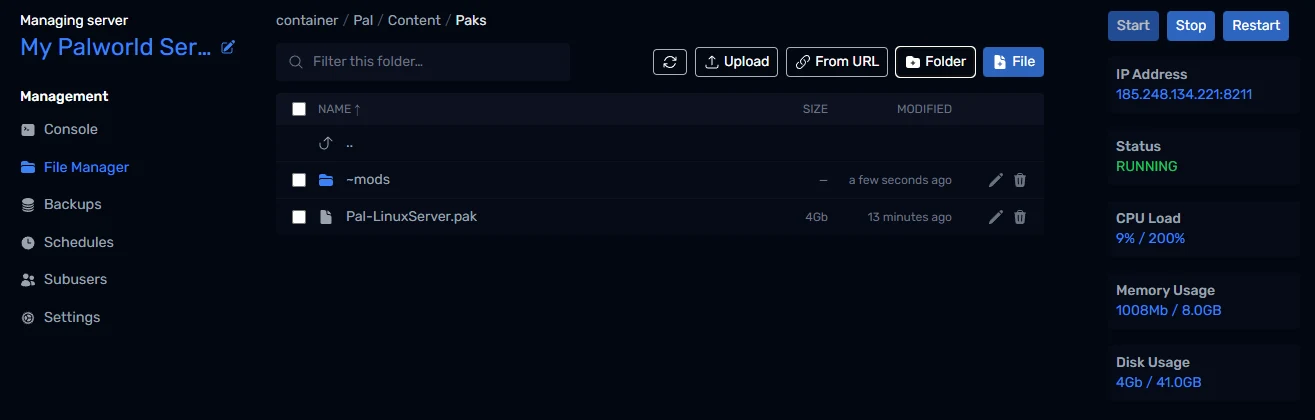
If a ~mods folder does not already exist, create it so the final path becomes:

Pal/Content/Paks/~mods

Upload the mod files

Extract the archive on your computer first. Then upload only the actual mod files.

Common cases:

  • one .pak file
  • a set of matching files such as:
    • ExampleMod_P.pak
    • ExampleMod_P.ucas
    • ExampleMod_P.utoc

Keep matching files together in the same ~mods directory. Do not split them across folders.

Common upload mistake

Many mod archives contain a top-level folder structure. If you upload the whole archive contents blindly, you may end up with something like:

Pal/Content/Paks/~mods/ExampleMod/Pal/Content/Paks/...

That is wrong.

Your final working structure should put the actual mod files directly in:

Pal/Content/Paks/~mods/

After upload

  • stop and start the server fully
  • do not rely on a quick file refresh alone
  • join the server and test the actual feature the mod is supposed to change

If the mod is described as client required, every player who needs the feature may also have to install the same mod locally. A server-side upload alone will not fix that.

Step 3 — Handle UE4SS-based mods carefully

This is where most Palworld server mod attempts go wrong.

Many advanced Palworld mods are built around UE4SS or a similar loader. These commonly target Windows binaries and typically expect files under a path like:

Pal/Binaries/Win64/

You may also see mod instructions referencing a Mods directory under that same location:

Pal/Binaries/Win64/Mods/

That does not automatically mean the mod is usable on your current server deployment.

When to stop and reassess

Do not force-install a framework-based mod if the author’s instructions depend on:

  • Win64 files only
  • a Windows DLL loader
  • Windows executable hooks
  • a game client install rather than a dedicated server install

If your panel-managed Palworld server shows Linux config and Linux startup behavior, the safer assumption is:

  • pak-only mods may work
  • Windows-only framework mods may not

How to evaluate one safely

Before uploading a framework mod, confirm all of these on the mod page:

  • the author says dedicated server supported
  • the author says Linux supported if you are on a Linux deployment
  • all dependencies are listed and available
  • install location is clearly documented
  • the mod version matches your current Palworld build

If any one of those is unclear, skip it. That is better than breaking a working world.

Step 4 — Adjust settings that affect mod behavior

Some mods depend less on files and more on how your server is configured. That means you may need to adjust PalWorldSettings.ini so the mod behaves as intended.

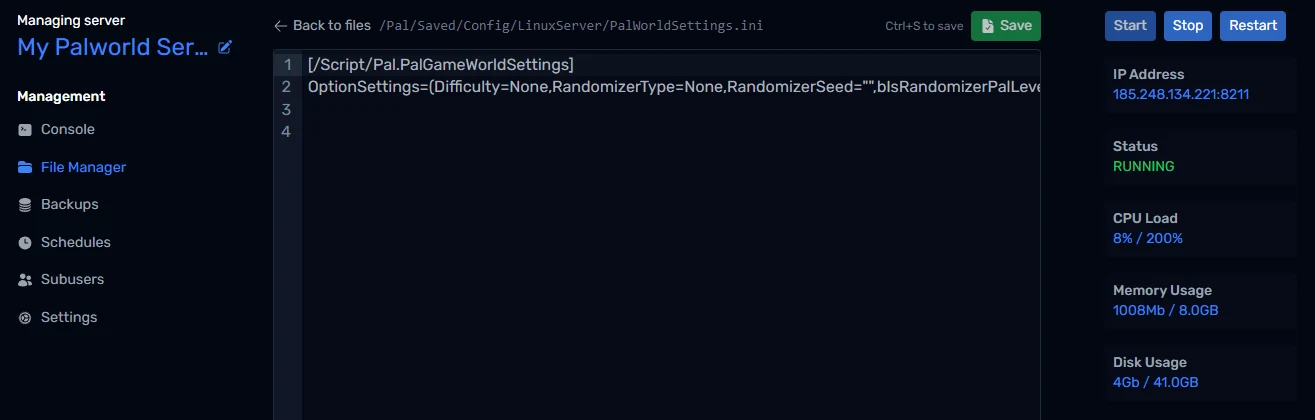
Linux config path:

Pal/Saved/Config/LinuxServer/PalWorldSettings.ini

Palworld stores most server rules in the OptionSettings=(...) line. Edit the existing line carefully rather than creating a second one.

Here is a shortened example of valid keys you can check around a mod install:

OptionSettings=(PalSpawnNumRate=1.000000,CollectionDropRate=1.000000,WorkSpeedRate=1.000000,ServerPlayerMaxNum=32,PublicPort=8211,RCONEnabled=False,RCONPort=25575,AdminPassword="",ServerPassword="",bUseAuth=True)

Useful things to verify:

  • ServerPlayerMaxNum=32
    Leave this aligned with your actual server plan and player expectations.

  • PublicPort=8211
    If your panel assigns a different game port, the config must match the port you actually use.

  • RCONEnabled=False and RCONPort=25575
    Only enable RCON if you actively use it and the port is available to the server.

  • PalSpawnNumRate=1.000000
    Some balance or difficulty mods assume vanilla spawn values.

  • CollectionDropRate=1.000000 and WorkSpeedRate=1.000000
    If a mod changes economy or progression, these can amplify or distort its effect.

A few practical rules when editing this file:

  • keep the parentheses
  • keep the commas
  • preserve quotation marks around text values
  • avoid duplicate keys
  • restart after every edit

If your file is missing or looks empty, compare it with:

Pal/Config/DefaultPalWorldSettings.ini

That default file is the reference point for valid setting names.

Step 5 — Restart and validate in the console

After any mod install, validation matters more than the upload itself.

Use this sequence:

  1. Stop the server completely.
  2. Confirm the uploaded files are in the exact final folder.
  3. Start the server.
  4. Watch the console from the beginning of startup.
  5. If startup succeeds, test the mod in game.
  6. If it fails, remove only the last mod you added and restart again.

What to look for

In the console and logs, focus on first-failure clues such as:

  • file not found
  • failed to open a pak
  • missing dependency
  • startup crash after a framework load
  • config parse issues after editing PalWorldSettings.ini

For file-based review, check the newest log under:

Pal/Saved/Logs/

If your server starts but the mod does nothing, that often means one of these is true:

  • the mod is client-side only
  • the mod requires all players to install it
  • the files are nested in the wrong folder
  • the mod is outdated for the current Palworld version
  • the mod depends on a framework you did not install

Troubleshooting

Use this checklist when a modded server fails to boot or behaves strangely.

Problem areaWhat to checkPractical fix
Console outputStart the server with the console open and read the first meaningful errorIgnore later cascade errors until you fix the first one
LogsReview the newest file in Pal/Saved/Logs/Look for missing file, load failure, or config syntax problems
ConfigsOpen Pal/Saved/Config/LinuxServer/PalWorldSettings.iniMake sure OptionSettings=(...) is still a single valid line with no broken commas or duplicate keys
PermissionsIf uploads seem present but ignored, re-upload via SFTP or the file managerExtract locally first and confirm the final filenames are readable and not still zipped
BackupsIf the world broke after a mod change, restore the last known-good backupRestore Pal/Saved/ and remove the new mod files before testing again
RestartsA soft refresh may not be enoughDo a full stop, then a fresh start
Startup variablesCheck the server startup command or variables if your panel exposes themKeep working flags such as -port=8211 -players=32 -useperfthreads -NoAsyncLoadingThread -UseMultithreadForDS intact while testing mods
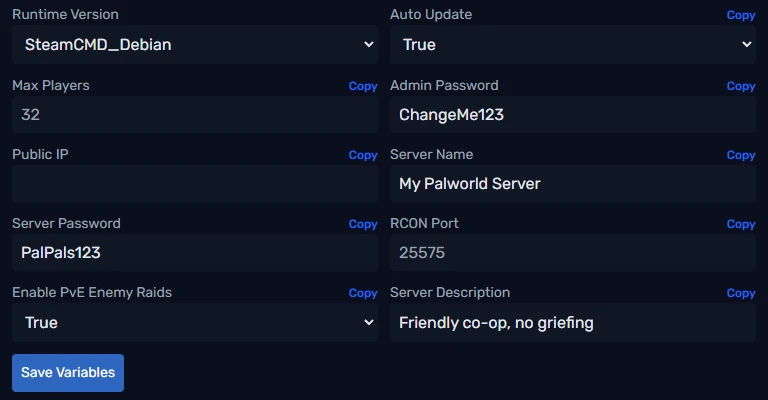
AllocationsConfirm the server is using the port actually assigned to itIf your allocation is not 8211, update PublicPort to match your real game port
PortsIf you enable remote admin, review RCONEnabled and RCONPort=25575Only enable RCON when the port is available and you actively need it
DatabasesVanilla Palworld and most mods do not use a databaseLeave the database feature unused unless the mod author explicitly requires one
SchedulesAutomatic restarts or update jobs can interfere with testingPause scheduled tasks temporarily while you validate a new mod
Resource usageCheck CPU and memory graphs after startupRemove heavy or broken mods if usage spikes right before crashes
Upload structureVerify the final folder layout, especially for pak filesMod files should sit directly in Pal/Content/Paks/~mods/, not buried in extra folders
Mod or plugin mismatchConfirm the mod is actually meant for a dedicated serverRemove client-only mods or Windows-only framework mods from Linux server installs
Missing dependenciesRe-read the mod page for required loaders or librariesInstall dependencies in the exact order the author specifies, or skip the mod if support is unclear

Next steps

  • Start with one pak-based mod, test it, and only then add a second.
  • Keep a dated backup before every Palworld update, because game patches frequently affect mod compatibility.
  • Maintain a simple changelog in a text file so you know which upload caused a problem.
  • If you want broader server admin help beyond mod installs, browse the other resources on PLAYERTICK guides.
  • Recheck every mod page after each Palworld update before bringing the server back online.
Scaleblade
Copyright © 2026 PLAYERTICKPLAYERTICK is a trading name of Scaleblade, Ltd.