Arma 3 workshop addons: install and load them correctly
Learn how to download Arma 3 Workshop mods with SteamCMD, upload them through the panel, copy signature keys, set -mod and -serverMod correctly, and troubleshoot common addon errors.
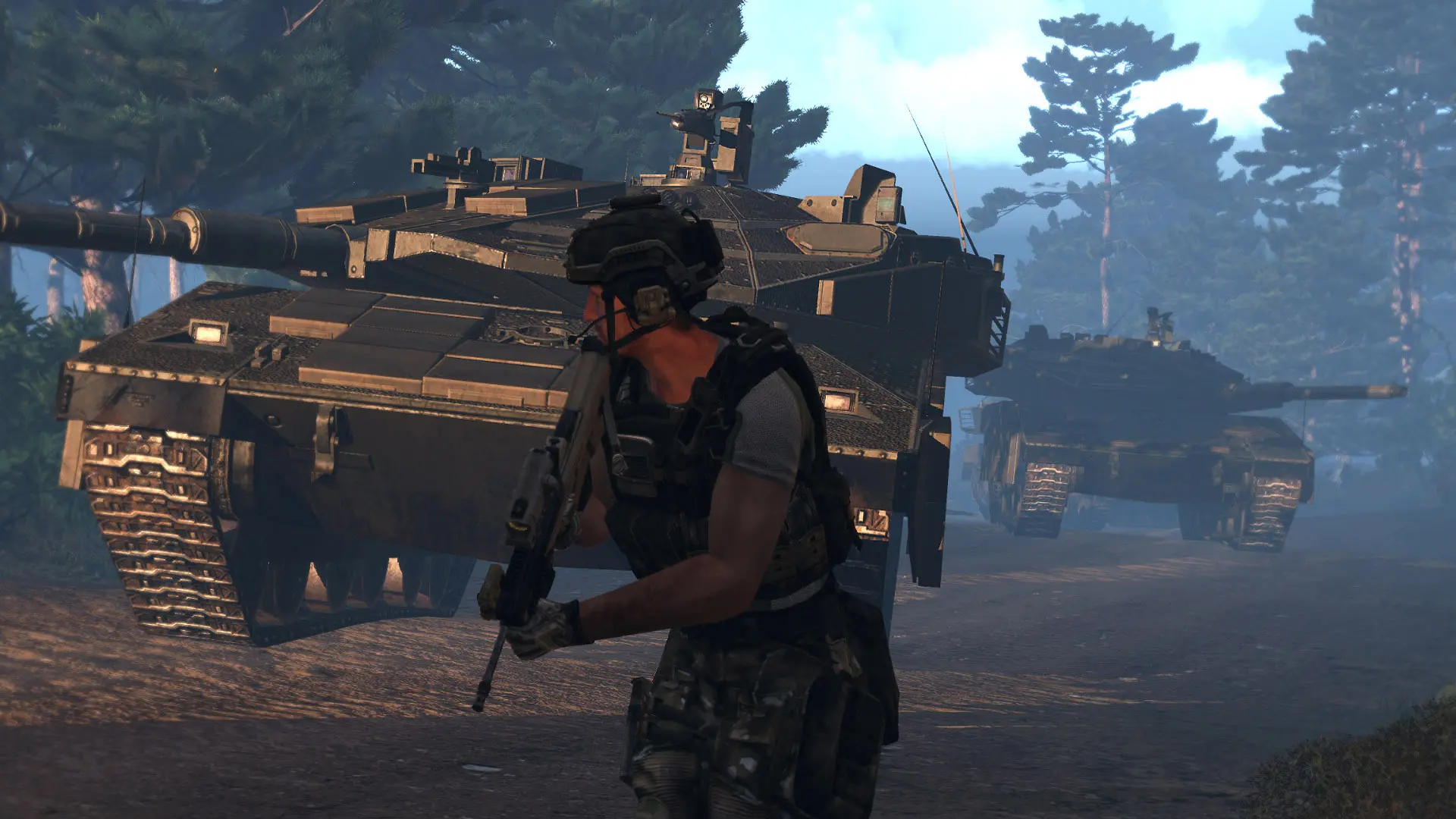
Arma 3 workshop addons are not hard to install once you separate the job into three parts: download the Workshop item, place it in the right server folder structure, and load it with the correct startup parameters. If you are running Arma 3 server hosting on PLAYERTICK, the process is the same as on any standard web panel: use SFTP or the file manager for uploads, adjust startup arguments, then verify the server boot log before inviting players.
Prerequisites
Before you start, make sure you have the basics in place:
- Access to the panel for your server.
- Permission to restart the server and edit startup parameters.
- Access to the server console and log viewer.
- Access to the file manager or SFTP.
- A recent backup of the server files before adding or replacing mods.
- Your main game allocation and port information. Arma 3 commonly starts on
2302/UDP, with adjacent UDP ports also used by the server. - A working
server.cfgin your server root, or a startup line that points to it with-config=server.cfg. - A clear place to store profiles and logs, commonly through startup parameters such as
-profiles=profiles -name=server. - A way to download Workshop items outside the panel, usually
steamcmd. - The Workshop IDs for every addon you want to install.
- The dependency list for each addon. Many Arma 3 mods require frameworks such as CBA to load first.
- An understanding that Arma 3 uses mods/addons, not a plugin system. If a guide talks about plugins, it usually does not apply here.
- Database access only if a specific mod explicitly documents a database requirement. Most Workshop addons do not need one.
Arma 3 workshop addons
Workshop content for Arma 3 is tied to the main game app ID 107410, while the dedicated server itself is a separate install. That matters because updating the server binaries does not automatically download your Workshop items.
The most reliable workflow on a standard panel is:
- Download the Workshop item with SteamCMD on your own computer or another machine you control.
- Find the downloaded mod under the Workshop content path.
- Rename or organize it as an
@ModNamefolder. - Upload that folder to the server root.
- Copy any
.bikeyfiles from the mod into the server's rootkeys/directory. - Add the mod to
-mod=or-serverMod=in the startup command. - Restart and verify the load in the console and
.rptlog.
A typical server root after installing two addons looks like this:
arma3server/
├── @CBA_A3/
│   ├── addons/
│   └── keys/
├── @ace/
│   ├── addons/
│   └── keys/
├── keys/
├── server.cfg
└── profiles/
A few rules save a lot of time:
- The mod folder must contain an
addons/directory. - On Linux-based servers, file and folder names are case-sensitive.
- The order in
-mod=matters for dependency chains. .bikeyfiles belong in the server rootkeys/folder, not only inside each mod folder.
Step 1 — Download the addon files with SteamCMD
If you do not already have the mod files locally, use SteamCMD. The Workshop download command for Arma 3 uses app ID 107410.
A standard download syntax is:
steamcmd +login anonymous +workshop_download_item 107410 WORKSHOP_ID validate +quit
If SteamCMD returns an ownership or access error, use a Steam account that owns Arma 3 instead of anonymous login:
steamcmd +login your_steam_username +workshop_download_item 107410 WORKSHOP_ID validate +quit
If you want a predictable download location, set a force install directory first:
steamcmd +force_install_dir ./a3workshop +login anonymous +workshop_download_item 107410 WORKSHOP_ID validate +quit
After the download completes, the files are typically placed under:
./a3workshop/steamapps/workshop/content/107410/WORKSHOP_ID/
What you are looking for inside that folder:
addons/- sometimes
keys/ - sometimes a
mod.cpp - optional user config or documentation files
If the downloaded folder is only a numeric Workshop ID, rename it before upload to something readable, such as:
@CBA_A3@ace@yourmodname
That makes your startup line much easier to manage.
Why not load the numeric Workshop folder directly?
You technically can point -mod= to folder names exactly as they exist, but named @ModName folders are easier to read, easier to reorder, and easier to troubleshoot after updates.
Step 2 — Prepare the mod folders and signature keys
Once the Workshop item is downloaded, prepare it for the server.
Check the folder structure
Open the downloaded folder and confirm it contains an addons/ directory. If it does not, you may have downloaded a mission, composition, or non-server package rather than a loadable addon.
A proper addon folder usually resembles:
@SomeMod/
├── addons/
│   ├── somefile.pbo
│   └── somefile.pbo.some_signature.bisign
└── keys/
    └── somemod.bikey
Copy .bikey files to the server keys/ folder
Arma 3 servers that enforce signatures expect public keys in the root keys/ directory. If the mod ships one or more .bikey files, copy them from the mod's keys/ folder into:
keys/
Do not leave this step out if you use signature checking. A common server.cfg setting is:
verifySignatures = 2;
That setting tells the server to verify signed addons. If the key is missing from keys/, clients can be rejected even when both server and client have the same mod.
Keep dependencies together
If a mod page lists required items, download and prepare those first. A common pattern is that a framework mod must load before the addon that depends on it. For example, if an addon requires CBA, place @CBA_A3 before that addon in the startup -mod= list.
Step 3 — Upload and load mods from the panel startup
After the folders are ready, upload them to the server root with SFTP or the file manager. Large Workshop addons upload more reliably over SFTP.
If you are managing your server through PLAYERTICK, stick to the standard panel workflow:
- stop the server
- upload or replace the
@ModNamefolders - upload any new
.bikeyfiles intokeys/ - update the startup parameters
- start the server and watch the console
Use -mod= for normal mods
Most Workshop addons that clients also need should be loaded with -mod=.
Example startup fragment:
-port=2302 -config=server.cfg -profiles=profiles -name=server -mod=@CBA_A3;@ace
Notes:
- Separate mods with semicolons:
; - Do not add spaces around the semicolons
- Keep dependency mods first
- Match folder names exactly, especially on Linux
Use -serverMod= only for server-side addons
If a mod is documented as server-side only, load it with -serverMod= instead.
Example:
-port=2302 -config=server.cfg -profiles=profiles -name=server -serverMod=@ServerOnlyMod
You can combine both when needed:
-port=2302 -config=server.cfg -profiles=profiles -name=server -mod=@CBA_A3;@ace -serverMod=@ServerOnlyMod
A safe baseline startup line
If you need a clean, readable baseline for a dedicated server that uses mods, this is a practical pattern:
-port=2302 -config=server.cfg -profiles=profiles -name=server -mod=@CBA_A3;@ace
That keeps the important parts visible:
-port=2302sets the main server port-config=server.cfgpoints to the main server config-profiles=profilesstores logs and profile output in a known directory-name=servercreates a predictable profile/log subfolder-mod=loads your Workshop addons
Step 4 — Check server.cfg and verify startup output
Most addon installation problems are caused by startup arguments, missing keys, or missing dependencies rather than by server.cfg, but one setting matters a lot:
verifySignatures = 2;
With that in place, the server expects valid signatures for signed client mods and the corresponding .bikey files in the root keys/ folder.
A very small, addon-aware server.cfg example looks like this:
hostname = "My Arma 3 Server";
verifySignatures = 2;
You may already have many more settings in your config. That is fine. The important point for Workshop addons is that the config and the startup line must agree with what you actually uploaded.
Where to read the real error output
The console may show enough to spot a bad mod path, but the .rpt log is often more useful. If your startup uses:
-profiles=profiles -name=server
look under the profile directory for the server's .rpt file after each restart. That is usually where you will find dependency and loading errors.
Look for messages about:
- missing addons
- missing signatures or key issues
- wrong folder names
- unsupported or outdated mod builds
If a mod page says it requires another Workshop item and that required mod is missing from -mod=, the server usually tells you that on boot.
Step 5 — Update addons without breaking the server
Workshop addons change often, so a good update routine matters more than the first install.
Safe update workflow
- Create a backup in the panel.
- Stop the server.
- Re-download the updated Workshop item with SteamCMD.
- Replace the old
@ModNamefolder on the server. - Replace or merge any updated
.bikeyfiles intokeys/. - Confirm the startup line still matches the folder names.
- Start the server and read the console and
.rpt.
If you rename folders after every update, keep the folder name stable. For example, if your startup line uses @ace, do not suddenly upload the next version as @ACE3 unless you also change -mod=.
Avoid partial uploads
A half-finished upload can leave you with missing .pbo files or old signatures. For larger addons:
- prefer SFTP over browser upload
- upload to a temporary local folder first if needed
- wait for the transfer to complete before restarting
- remove obviously old duplicate copies from the server root
Keep a simple mod inventory
Store a small text note with:
- Workshop ID
- folder name on the server
- whether it belongs in
-mod=or-serverMod= - dependencies
- date last updated
That makes future maintenance much easier, especially if multiple admins share the server.
Troubleshooting
Use this table when Workshop addons refuse to load or players cannot join.
| Area | What to check | Practical fix |
|---|---|---|
| Console output | Read the boot output immediately after restart. | Look for bad paths, missing mods, or failed startup parameters. Correct the -mod= or -serverMod= list first. |
| Logs | Check the .rpt log in your profile path if you use -profiles=profiles -name=server. | The .rpt file usually gives clearer dependency and signature errors than the live console. |
| Configs | Open server.cfg and confirm verifySignatures = 2; only if you have the needed .bikey files. | If keys are missing, copy them to the root keys/ folder or temporarily relax testing on a private test server only. |
| Permissions | Confirm uploaded files are readable and folder names kept their exact case. | Re-upload via SFTP if the file manager upload was incomplete. On Linux, fix any case mismatch in folder names and startup arguments. |
| Backups | Did the server work before the last mod change? | Restore the latest backup, then re-add mods one at a time. |
| Restarts | Did you restart after uploading or editing startup parameters? | A full restart is required after changing loaded addons. |
| Startup variables | Some panels expose part of the startup command as editable values. | Make sure the final startup command still includes the correct -mod= or -serverMod= string with semicolons and exact folder names. |
| Allocations | Confirm the server is bound to the port you expect. | Keep -port=2302 or your assigned port consistent with the allocation shown in the panel. |
| Ports | Arma 3 commonly starts at 2302/UDP and uses nearby UDP ports as well. | If the server is invisible or unreachable after changes, verify your assigned UDP ports are available and that -port= matches the allocation. |
| Databases | Most Workshop addons do not use a database. | If a mod's documentation mentions MySQL or another database, treat that as a separate dependency and configure it only if the mod explicitly requires it. |
| Schedules | Automatic tasks can restart the server during uploads or updates. | Pause restart schedules while replacing large mod folders, then re-enable them after testing. |
| Resource usage | Big mod packs increase RAM and disk use. | Watch the panel resource graphs after boot. Remove unused mods if memory spikes or startup times become excessive. |
| Uploads | Browser uploads may time out on large folders. | Use SFTP for multi-gigabyte addons and verify file counts before starting the server. |
| Mod/plugin mismatch | Arma 3 does not use a plugin loader in the same way some other games do. | Ignore instructions that talk about dropping plugins into a plugins folder; use @ModName folders and startup parameters instead. |
| Missing dependencies | A Workshop item may require one or more other addons. | Read the mod page, download every requirement, upload each dependency, and place them in the correct order in -mod=. |
Next steps
- Build a small test mod set first, then expand it only after each restart is clean.
- Keep a changelog of Workshop IDs, folder names, and startup order for every admin who touches the server.
- Use the panel's backup tools before every mod update and before removing old keys.
- Watch for new admin resources on the PLAYERTICK guides page when you want to tighten your overall server workflow.
- Recheck the
.rptlog after every mod change, even if the server appears online.